
Reviewing and Approving
Check Profile Status first - that tells you what action is needed. If it says In Review or Changes in Review, look through the profile. Approve each item individually as you go, or click Approve Profile to approve everything at once if it all looks good.
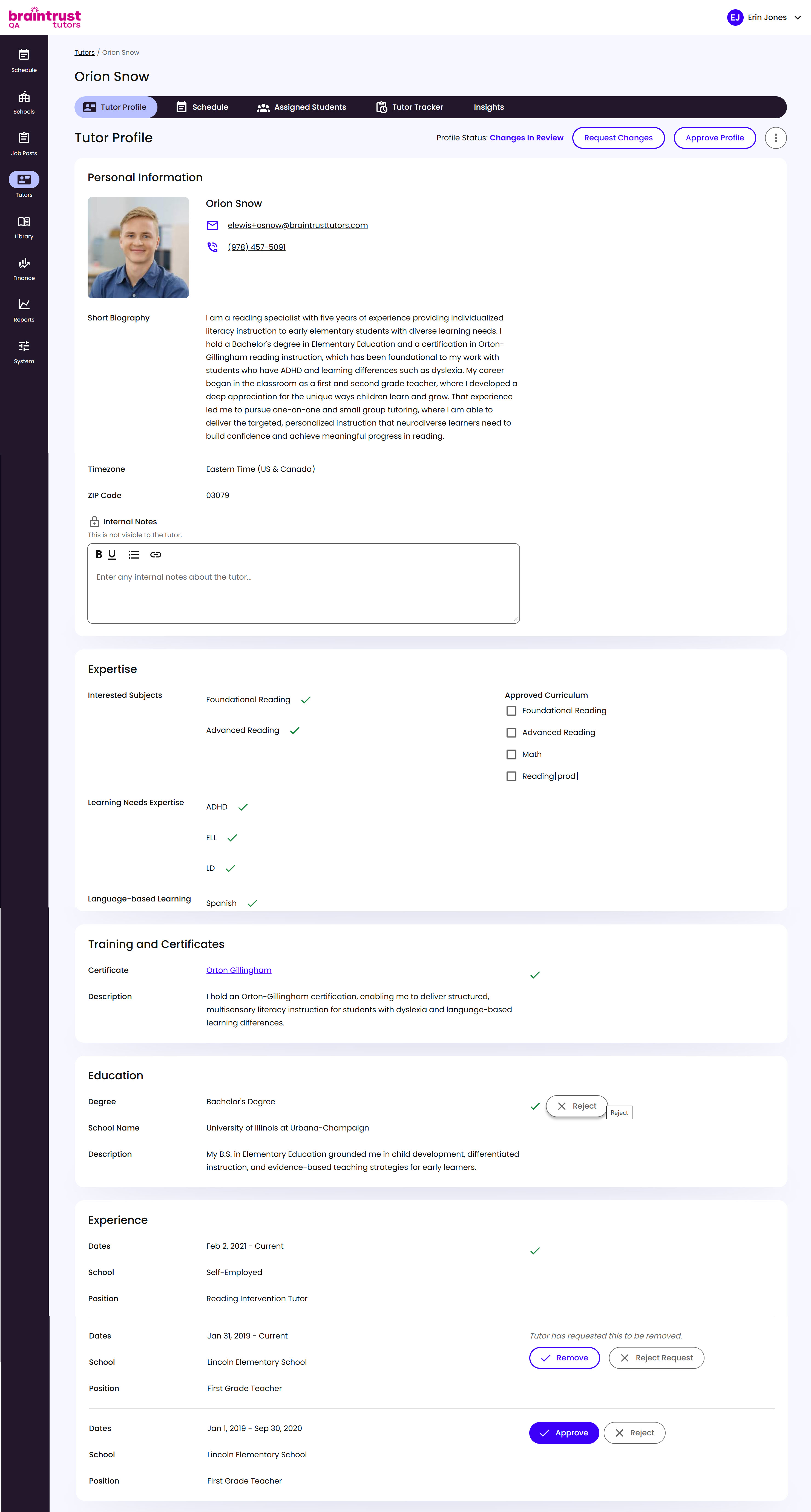
What’s on This Screen
- Profile Status, next to the tabs. Shows where the profile currently stands, like “Changes in Review.”
- Request Changes, a button that sends the whole profile back to the Tutor so they can make edits.
- Approve Profile, a button that approves everything on the profile at once.
- Personal Information, the Tutor’s basic details:
- Photo, the Tutor’s profile picture.
- Name, the Tutor’s full name.
- Email, the Tutor’s contact email.
- Phone, the Tutor’s contact phone number.
- Short Biography, a brief bio the Tutor writes about themselves.
- Timezone, the Tutor’s timezone.
- ZIP Code, the Tutor’s ZIP code.
- Internal Notes, at the bottom, for your own notes about the Tutor, which they never see.
- Expertise, what the Tutor is qualified and interested in teaching:
- Interested Subjects, what the Tutor wants to teach.
- Approved Curriculum, a separate checklist only you can check off, marking what they’re actually cleared to teach.
- Learning Needs Expertise, like ADHD, ELL, or LD.
- Language-based Learning, Spanish, French, Mandarin, or German, for whichever the Tutor has indicated.
- Training and Certificates, any certification the Tutor holds, with a description of what it covers.
- Education, the Tutor’s degree and school, with a description.
- Experience, the Tutor’s past teaching or tutoring positions, each with dates, school, and position.
Beyond approving or rejecting the whole profile at once, you can approve or reject any section, or any individual item within a section, like one specific certificate, degree, or past position, on its own. Rejecting one still sends the whole profile back to the Tutor, but only the item you rejected is flagged on their end, so they know exactly what needs to be resolved before the profile can be approved.
If the Tutor has asked to remove something themselves, like an old job, that entry shows Remove and Reject Request instead: Remove takes it out of the profile, Reject Request keeps it as is.
What Happens Next
Approving the full profile is the moment a candidate officially becomes an approved Tutor: they can now apply to Opportunities and, eventually, get matched to a group.