
Finding a Profile to Review
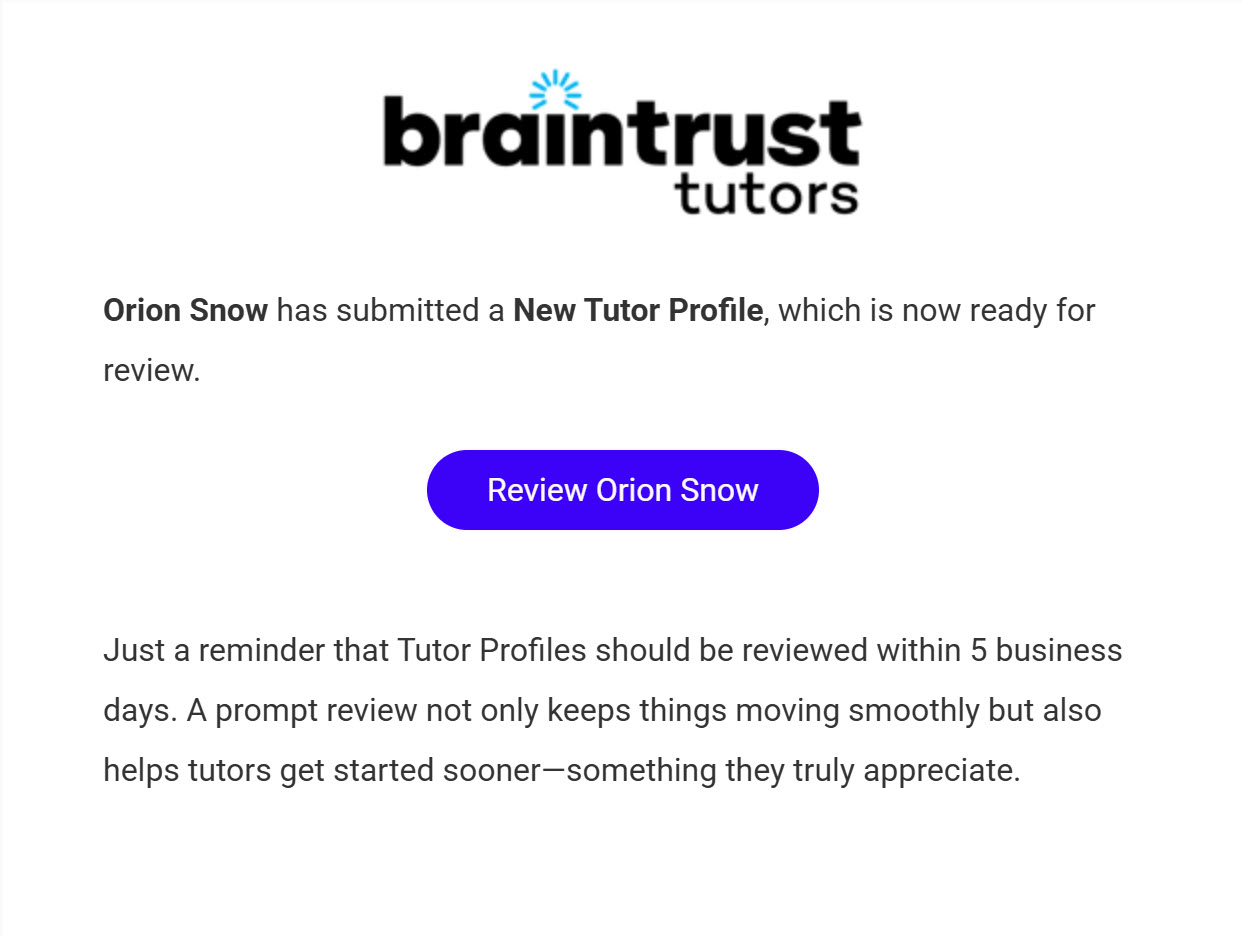
Once a Tutor submits their profile, you get a “New Tutor Profile Submitted” email with a direct link straight to that Tutor’s Profile Page. Click Review [Tutor Name] to go straight to the Profile, where the actual review happens.
What’s on This Screen
- Message, letting you know the Tutor has submitted a new profile that’s ready for review.
- Review [Tutor Name], a button that goes straight to that Tutor’s Profile Page.
- Reminder text, encouraging a prompt review.
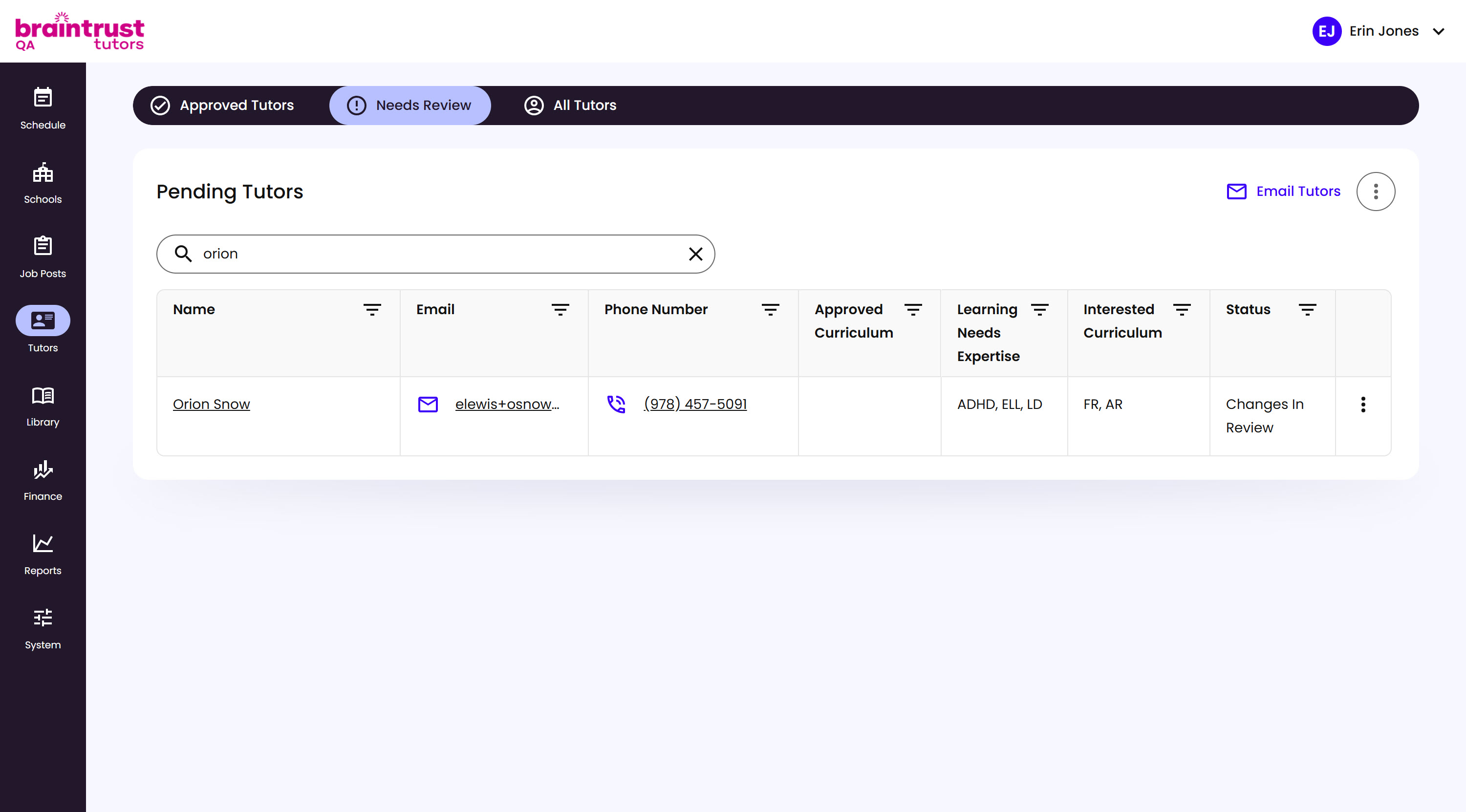
You can also find every Tutor waiting on review without leaving the platform: go to Tutors in the main navigation menu, then open the Needs Review tab, which lists every Tutor whose profile is ready for a decision. Check this tab whenever the email isn’t handy. If the list is empty, nothing’s waiting on you. If a Tutor you’re looking for isn’t showing, search for them by name. If they still don’t turn up, check the All Tutors or Approved Tutors tabs - someone else may have already approved them. Click a Tutor’s row to open their Profile.
What’s on This Screen
- Approved Tutors, Needs Review, and All Tutors tabs, at the top of the Tutors page. Needs Review shows only Tutors with a profile pending your decision.
- Email Tutors, a link that sends a message to the Tutors currently listed.
- Search bar, for finding a specific Tutor by name.
- Pending Tutors table, listing each Tutor’s Name, Email, Phone Number, Approved Curriculum, Learning Needs Expertise, Interested Curriculum, and Status, like “Changes in Review.” Columns can be sorted or filtered, and the options menu at the end of a row gives you quick actions for that Tutor.