
Once a Job Post is Listed, it shows up in every matching Tutor’s Opportunities list. If you published it privately instead, Tutors won’t see it there, so you’ll need to send them the direct link yourself.
What the Tutor Sees
Tutors keep track of everything from their Opportunities page.
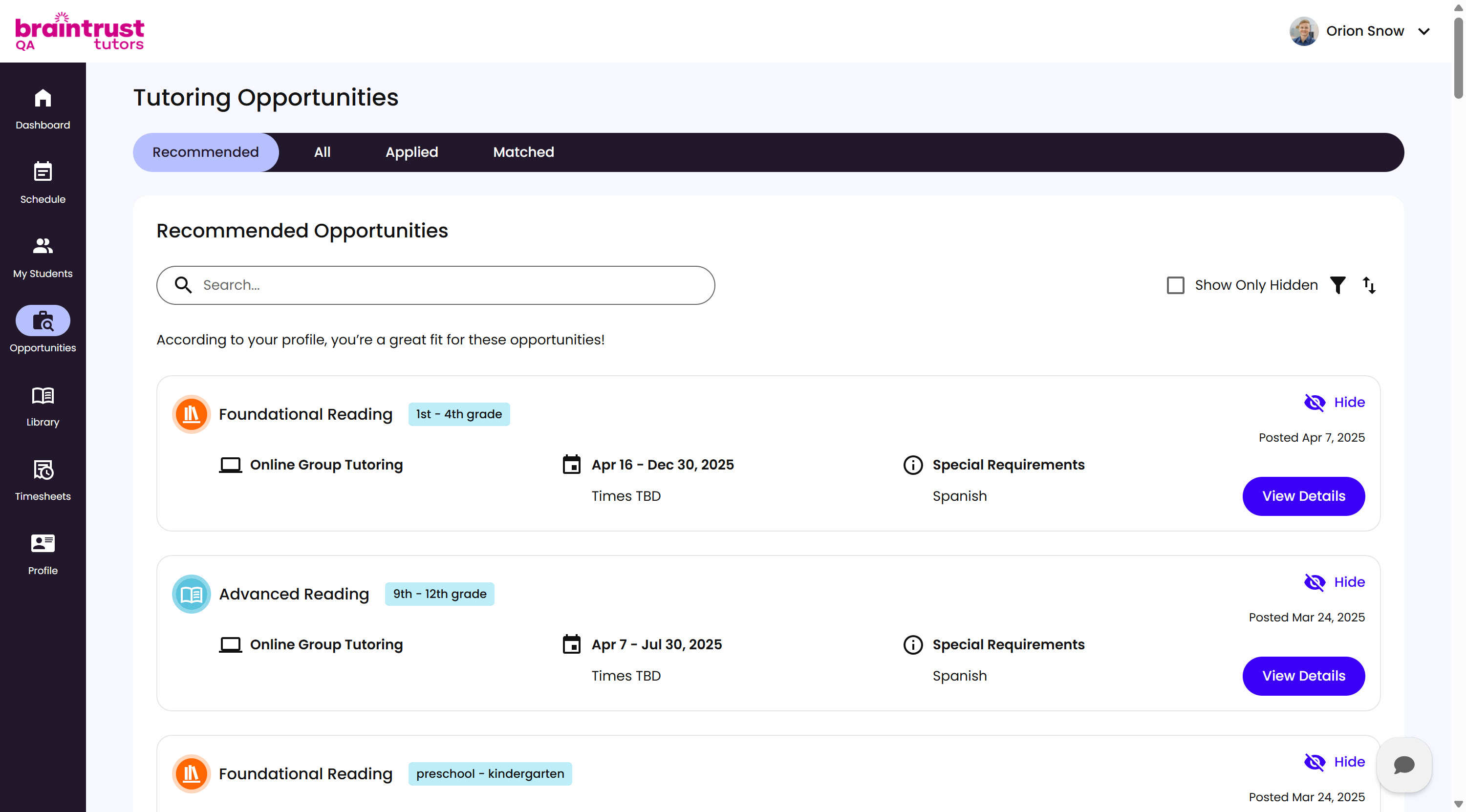
What’s on This Screen
- Recommended, All, Applied, and Matched tabs, for filtering which opportunities show. Recommended only shows opportunities that fit the Tutor’s profile.
- Search bar, for finding a specific opportunity.
- Show Only Hidden, a checkbox for reviewing opportunities the Tutor has hidden, plus filter and sort icons alongside it.
- Opportunity cards, each showing the Curriculum and grade range, Tutoring Type and Location, Dates and Times, any Special Requirements, when it was posted, and Hide and View Details controls.
Opening the opportunity shows the Tutor the full Opportunity Details before they decide whether to apply.
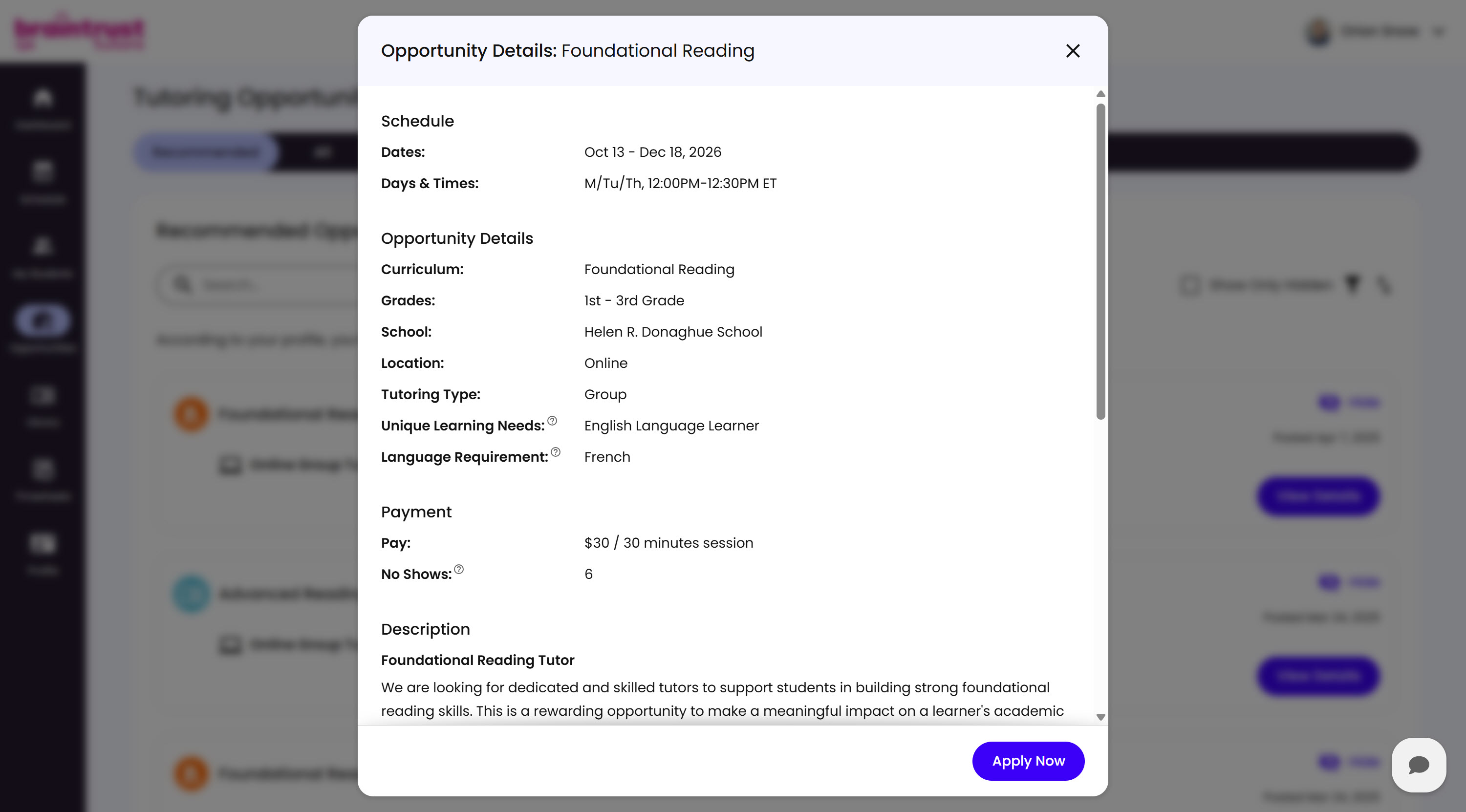
What’s on This Screen
- Schedule, the Dates and Days & Times for the opportunity.
- Opportunity Details, the Curriculum, Grades, School, Location, Tutoring Type, Unique Learning Needs, and Language Requirement.
- Payment, the Pay rate and No Shows allowed.
- Description, further down, showing the Opportunity Description you wrote for Tutors.
- Apply Now, at the bottom right, which starts their application.
Apply Now moves them into the application itself, where they pick their availability, write anything they’d like you to know about why they’re a good fit, and answer whatever Q&A questions you’ve set up for this posting - those can ask about anything, scheduling is just one example.