
Once a school’s schedule is finalized, you create a Job Post, one for each curriculum and group type, since pay and billing rates can differ between them. You’ll find this under the school itself, not a separate area of the platform: go to Schools, open the school you’re posting for, click the Job Posts tab, and click New Job Post to start one.
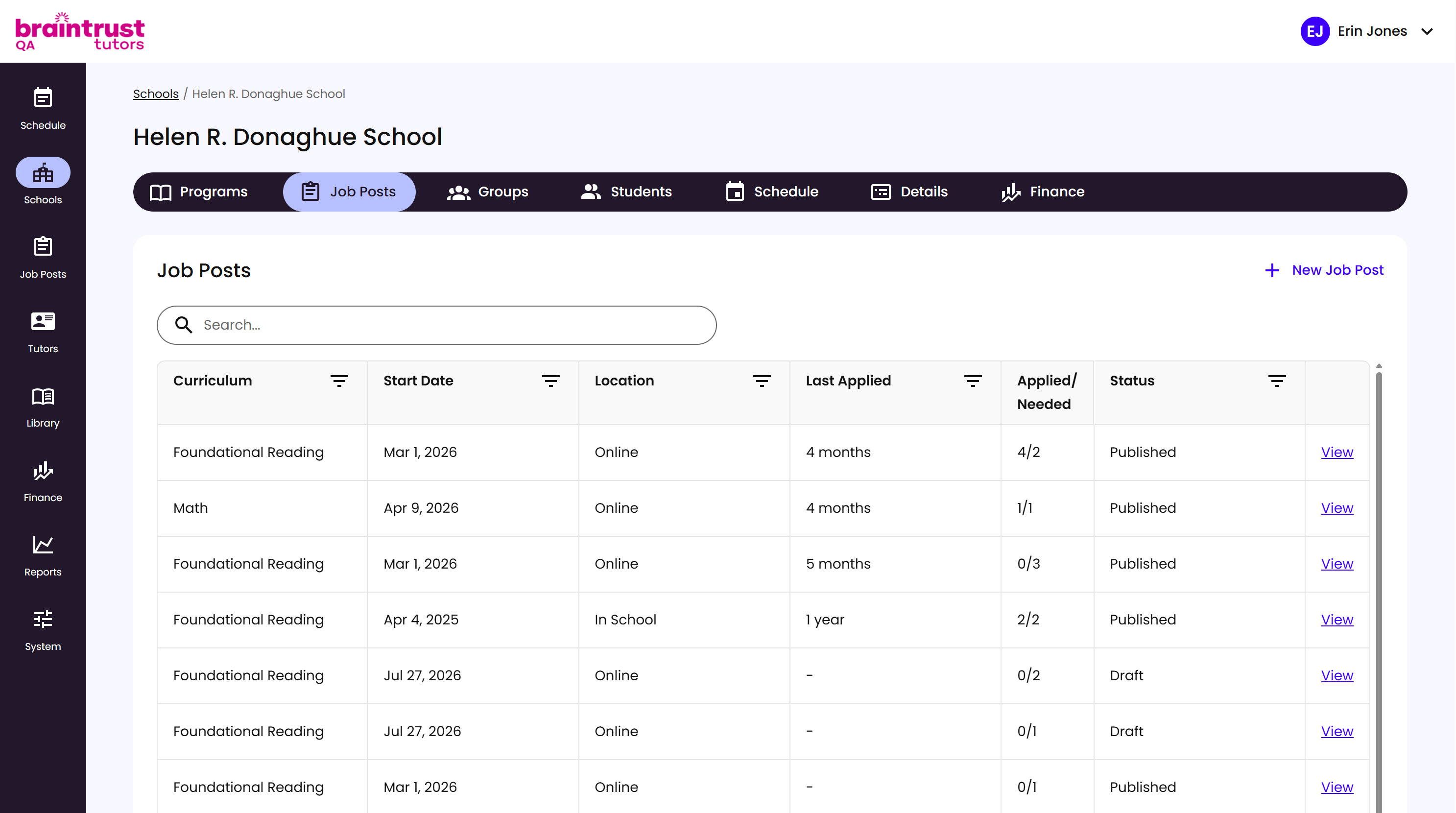
What’s on This Screen
- Programs, Job Posts, Groups, Students, Schedule, Details, and Finance tabs, across the top of the school’s page. Job Posts is where every posting for this school lives.
- New Job Post, a button at the top right that starts a new posting.
- Search bar, for finding an existing Job Post.
- Job Posts table, listing each posting’s Curriculum, Start Date, Location, Last Applied, how many Tutors have applied versus how many are needed, and Status, Published or Draft, with a View link to open it.
Pick the Program this Job Post is for. If the right one isn’t listed, click Add new to create it without leaving the page.
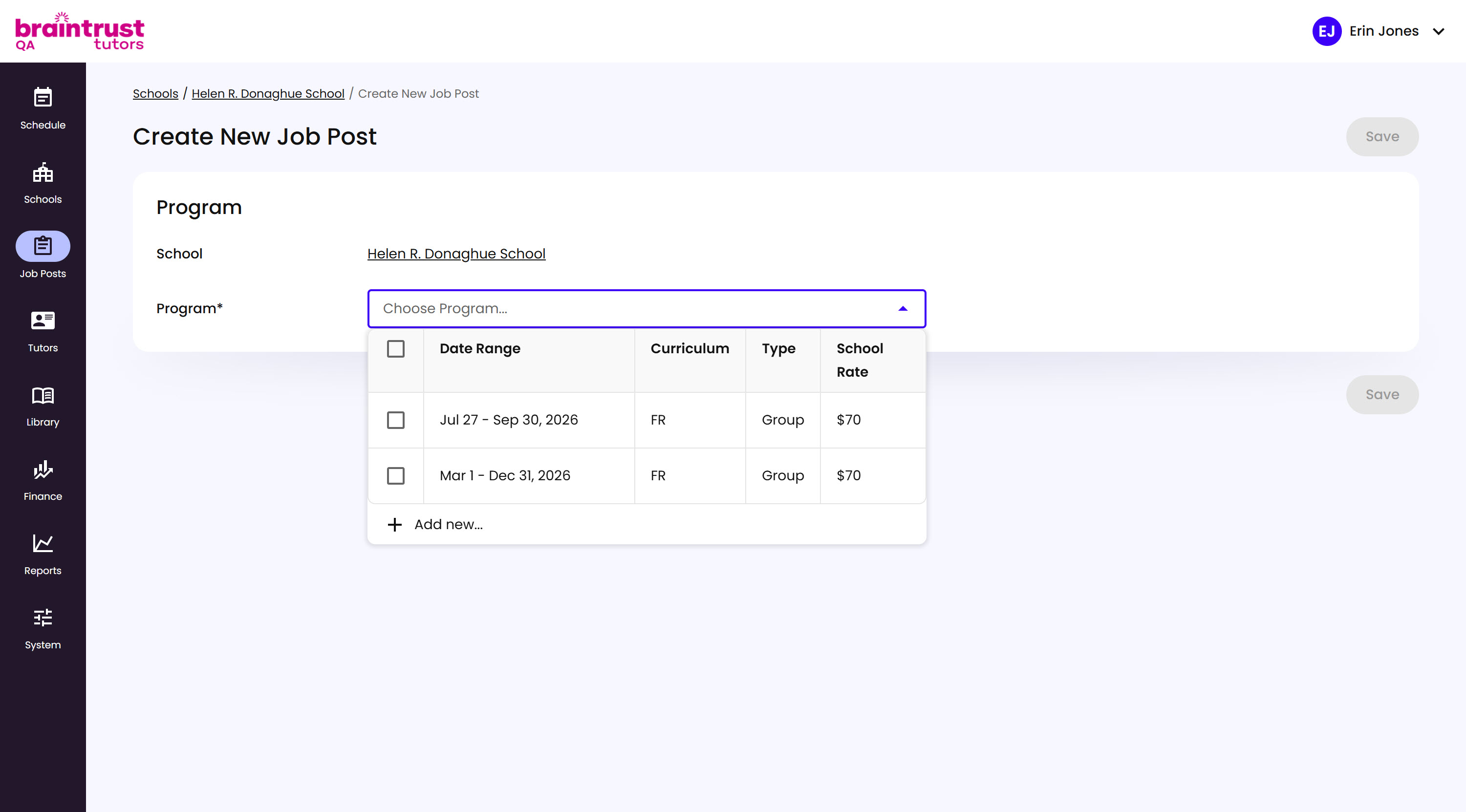
What’s on This Screen
- School, shown read-only at the top, confirming which school this post is for.
- Program, a required dropdown listing the school’s Programs by Date Range, Curriculum, Type, and School Rate.
- Add new…, at the bottom of the dropdown, for creating a Program on the spot if the one you need doesn’t exist yet.
Fill in the required fields, marked with an asterisk: Tutor Hourly Rate, Availability, Session Location, Role, and Session Type. Add a description if Tutors need more context, and use Internal Notes for anything just for your team. Click Save when you’re done.
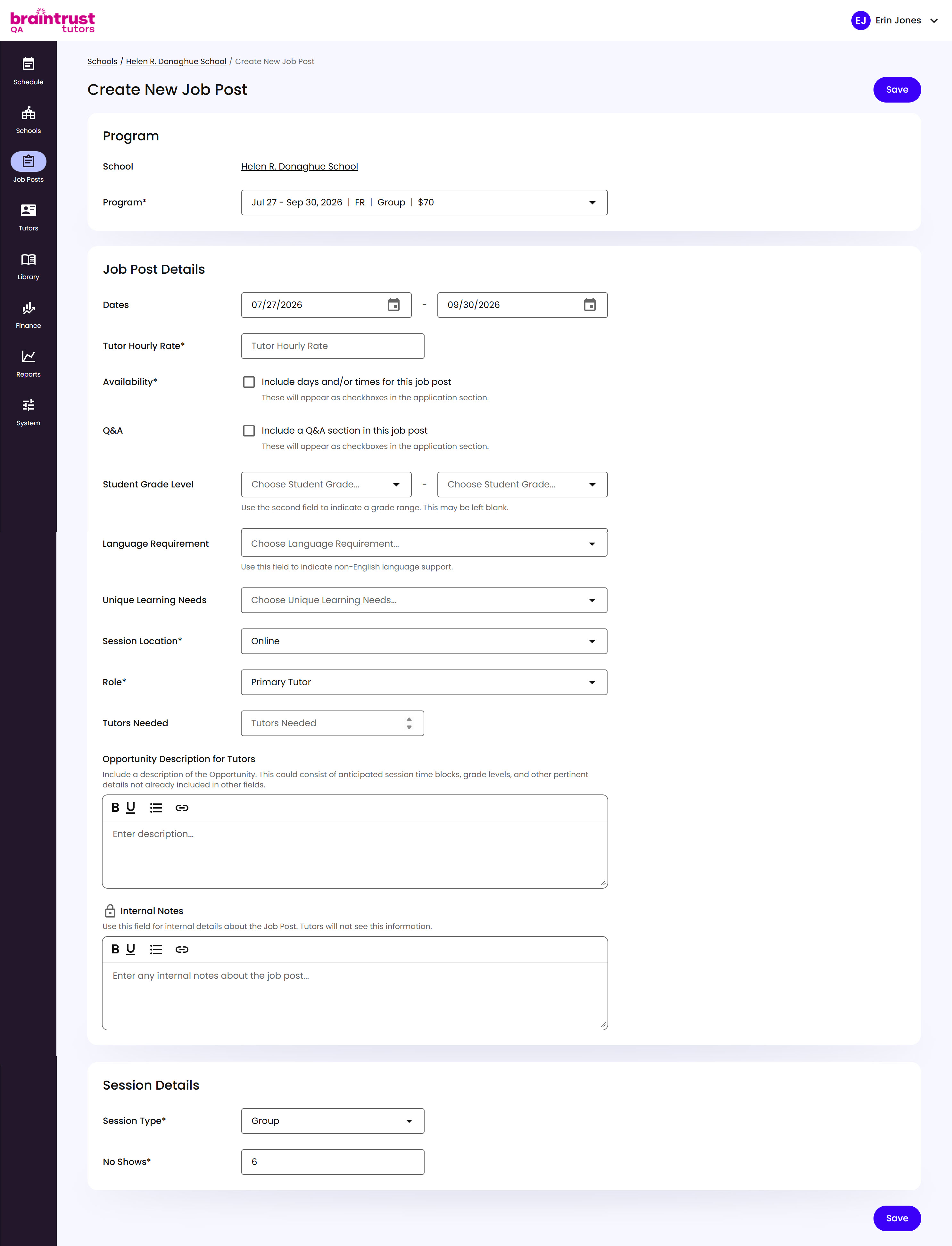
What’s on This Screen
- Program, showing the School and the Program you picked.
- Job Post Details, the fields that make up the posting itself:
- Dates, pre-filled from the Program, but editable.
- Tutor Hourly Rate, the rate the Tutor is paid per hour. Sessions don’t have to be a full hour, like 30 or 45 minutes, and are paid proportionally based on this rate.
- Availability, a checkbox that adds day and time checkboxes to the application.
- Q&A, a checkbox that adds a Q&A section to the application.
- Student Grade Level, a range - the second field is optional.
- Language Requirement, for non-English language support.
- Unique Learning Needs, any specific learning needs the students in this group have.
- Session Location, Online or In School.
- Role, the position being filled, like Primary Tutor.
- Tutors Needed, how many Tutors this Job Post is looking to fill.
- Opportunity Description for Tutors, a text box for anything Tutors should know that isn’t already covered by the other fields, like anticipated session time blocks or grade levels.
- Internal Notes, a private text box only your team can see, marked with a lock icon.
- Session Details, the fields that describe how sessions run:
- Session Type, Group or 1:1.
- No Shows, the number of no-shows allowed for this Job Post’s sessions.
Saving doesn’t make the Job Post available to Tutors - it’s created as a Draft first, sitting in the school’s Job Posts table.