
There are two independent ways to match a Tutor to a Group: the Job Post’s Group Matching table, or the Group’s own Tutor History. Either one gets a Tutor matched - pick whichever is more convenient for what you’re doing, you don’t need to use both.
Once a school’s Groups have their sessions scheduled, you match a Tutor to each one from the Job Post’s Group Matching tab - a table of every Group still needing a Tutor, defaulting to a Status filter of Unassigned/Draft so you’re only looking at what actually needs your attention.
A Group has to have its sessions scheduled before it can be matched: the table’s Days, Start, and End columns only populate once that’s done, and a Group without them isn’t ready yet.
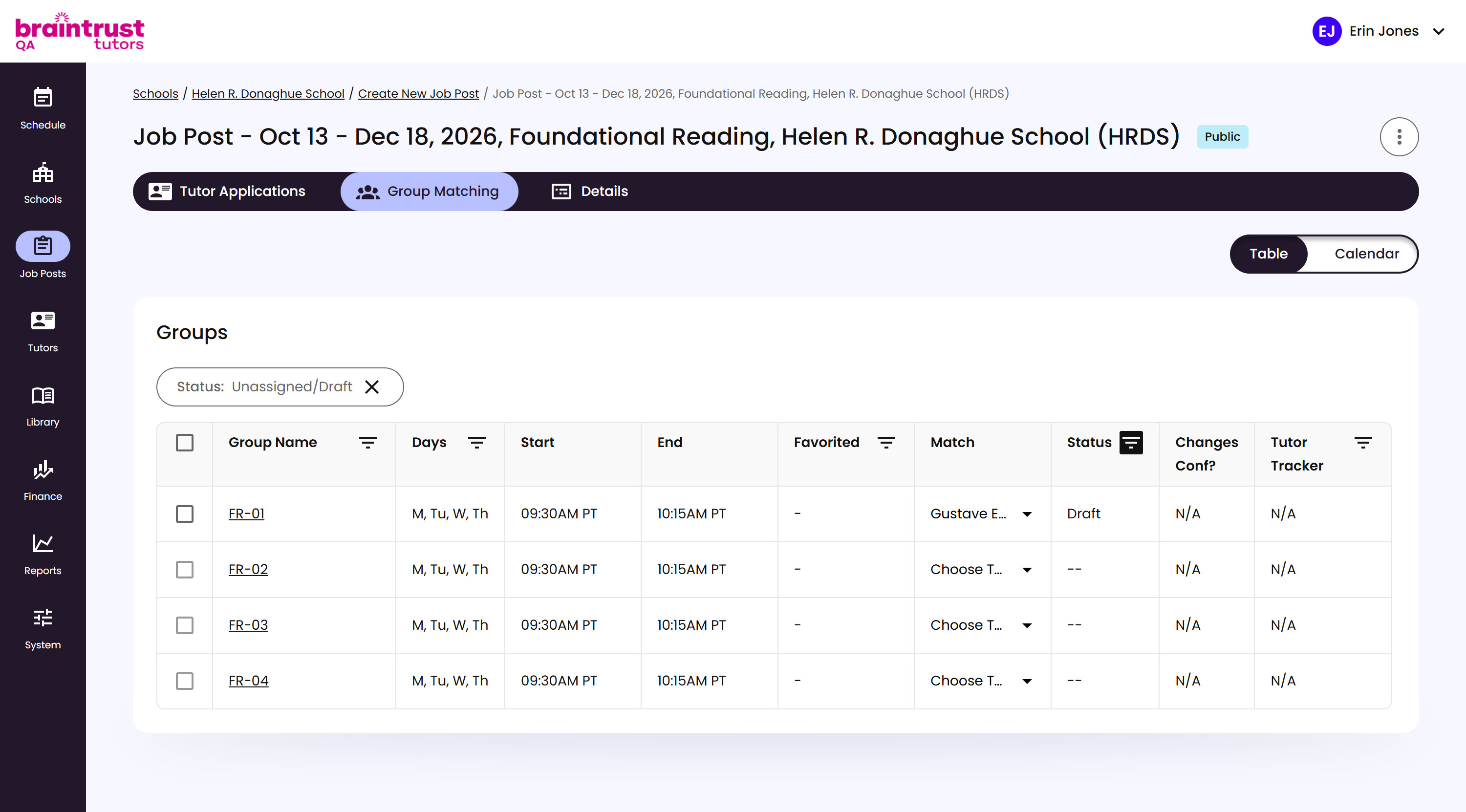
What’s on This Screen
- Table and Calendar toggle, at the top right, for switching between the two views.
- Status filter chip, defaulting to Unassigned/Draft.
- Group Name, linking to the Group’s own page.
- Days, Start, and End, the Group’s scheduled sessions.
- Favorited, the qualifying candidate for this Group, if there is one - see Favorited Candidates next.
- Match, for picking who to assign - a quick dropdown if there’s a Favorited candidate, otherwise the Match Tutor modal. See Matching a Tutor below.
- Status, where the match currently stands:
--if no one’s been picked yet, otherwise Draft, Assigned, or Confirmed. - Changes Conf?, whether the Tutor has confirmed any changes made after matching.
- Tutor Tracker, any flagged concerns on the matched Tutor’s profile.