
Confirming the Match
Confirming a match doesn’t notify the Tutor unless the Group already has sessions scheduled - without that, no email goes out. Once sessions are in place, the Tutor gets a “You Have Been Matched” email with the Group’s details and a choice to accept or withdraw. The email shows the date range of the Tutor’s own scheduled sessions, not the Program’s overall dates, and its Next Steps section points them to their Tutor Launch Call, the Braintrust Pre-Launch course, Lessonspace Basics, Assessment Directions, and Week 1 of Tutoring.
What the Tutor Sees
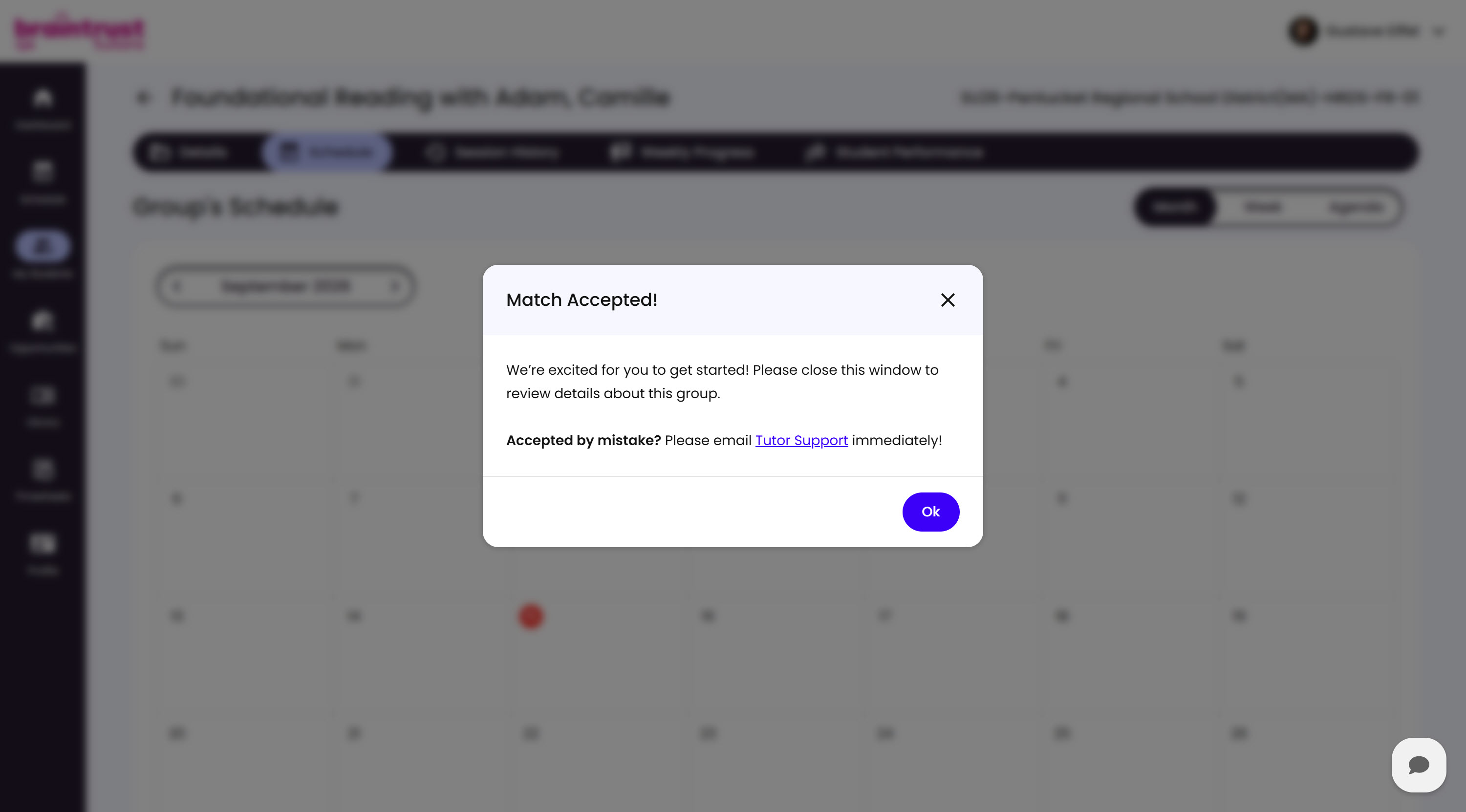
Accepting takes the Tutor to the Group’s Schedule tab rather than back to the Job Post, with a “Match Accepted” confirmation modal along the way.
What’s on This Screen
- Confirmation message, welcoming the Tutor and prompting them to close the window to review the Group’s details.
- “Accepted by mistake?” note, with a link for the Tutor to email Tutor Support right away if they need it undone.
- Ok button, closes the modal.
This is true whether they’re accepting a standard match or a substitute assignment from Tutor History.