
Declining Applicants
When you know an applicant isn’t a fit, click Reject on their application card.
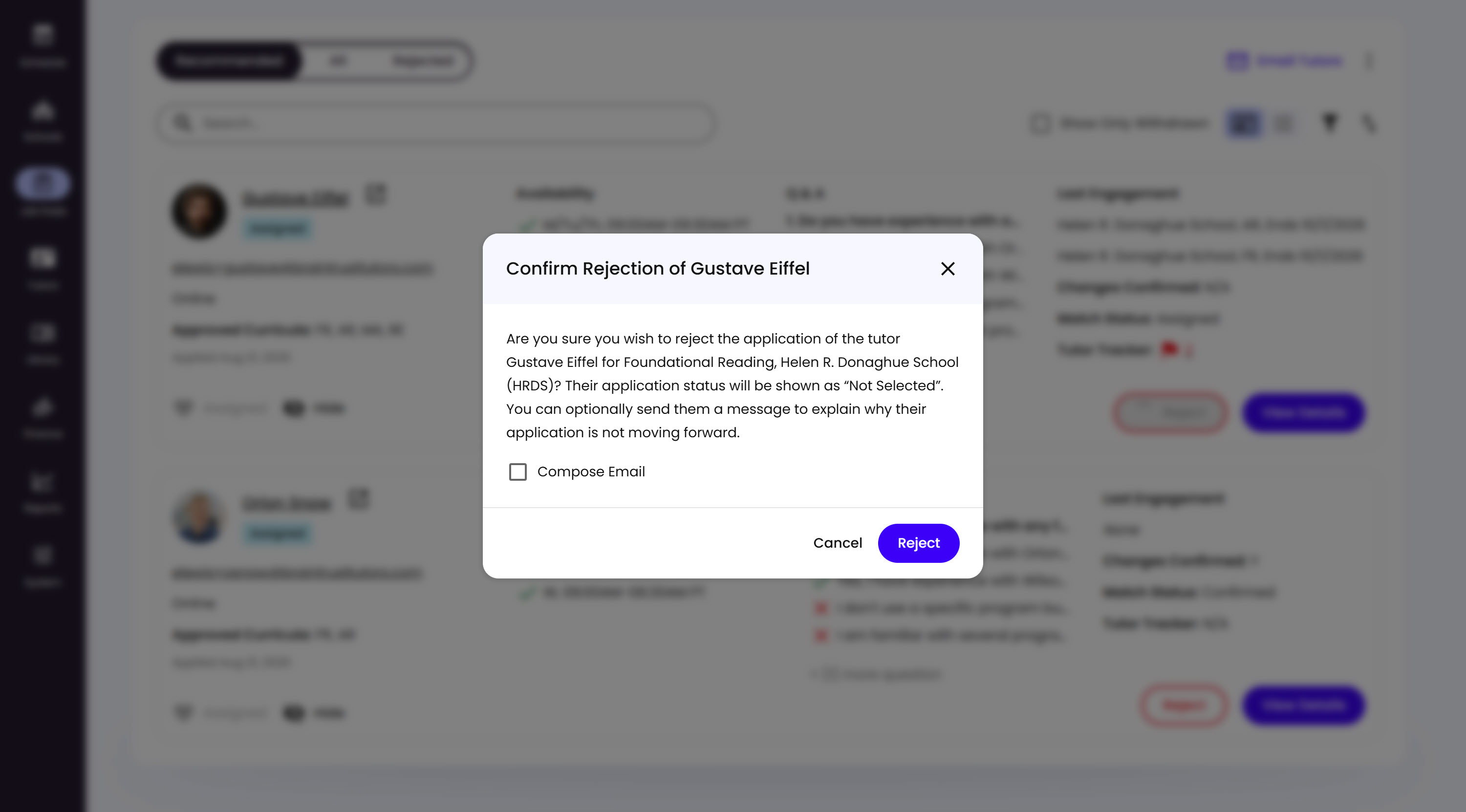
What’s on This Screen
- Explanation text, confirming the Tutor’s own application status will show as “Not Selected” once rejected.
- Compose Email, an optional checkbox that opens your mail app with the Tutor’s email ready, if you want to explain why - see Setting Up a Mail Handler if this doesn’t do anything for you yet.
- Cancel and Reject buttons, to back out or confirm.
The Rejected tab keeps a record of everyone you’ve declined, in case you need to revisit one.
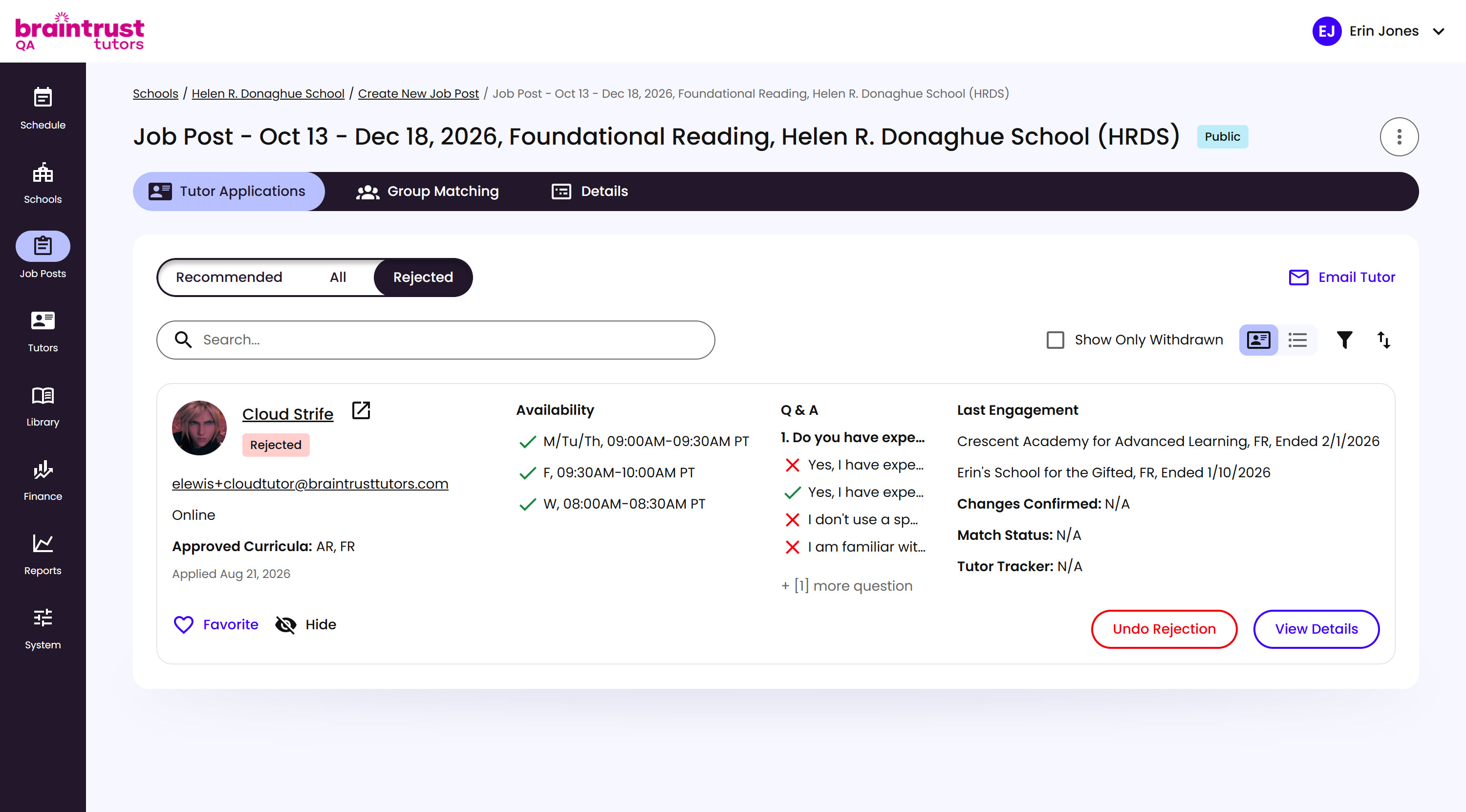
What’s on This Screen
- Rejected tab, listing only declined applications.
- Rejected badge, on the application itself.
- Undo Rejection, in place of Reject, for reversing the decision.
For declining several applicants at once, use Reject Multiple Tutors from the options menu on the Recommended or All tabs.
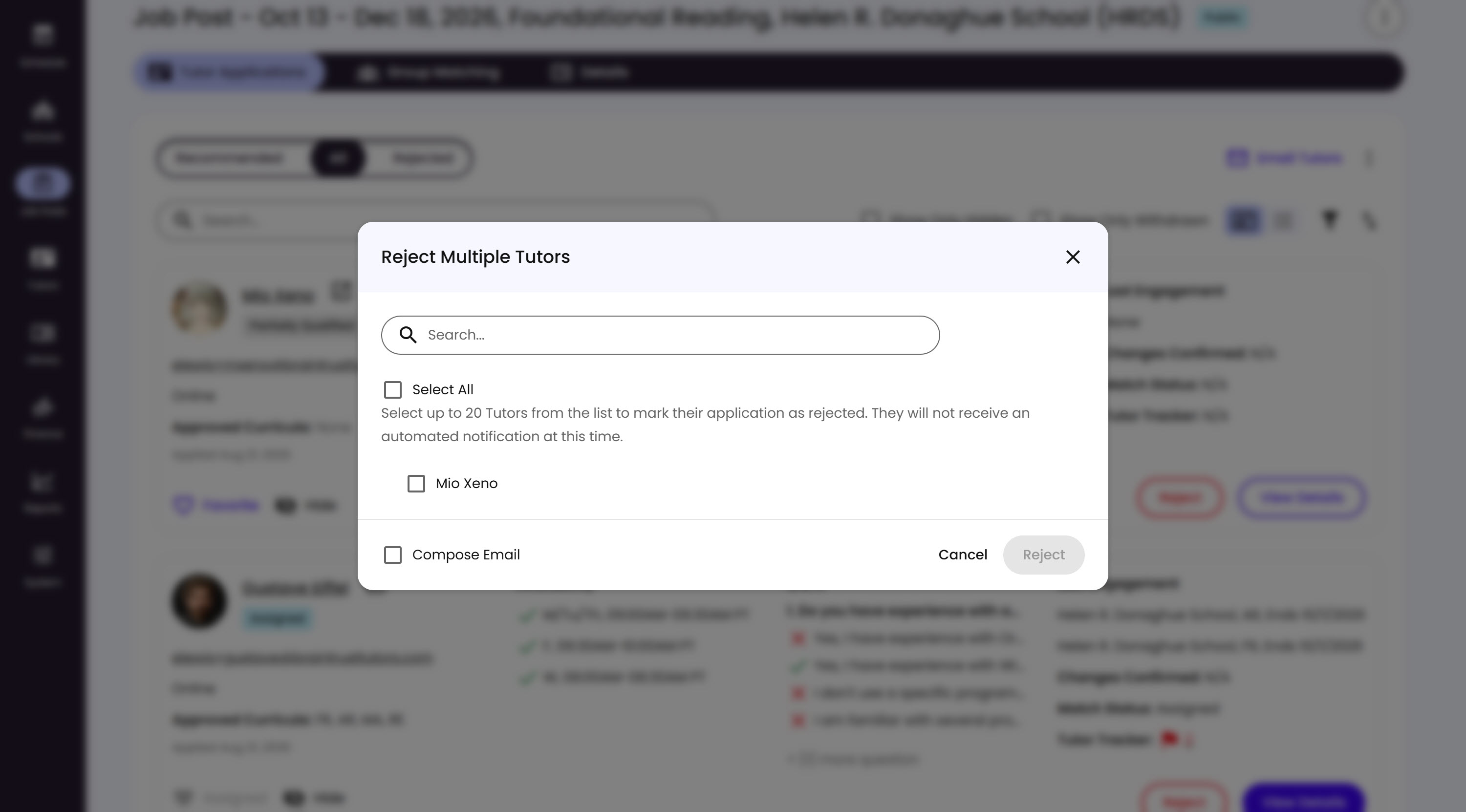
What’s on This Screen
- Explanation text, noting you can select up to 20 Tutors and that they won’t receive an automated notification.
- Tutor checkboxes, for picking who to reject - Tutors already matched to a Group won’t appear in this list.
- Compose Email, an optional checkbox, same as the single-reject flow.
- Cancel and Reject buttons, to back out or confirm.
If you close the Job Post while it still has active applications instead, a warning lets you know closing will automatically decline every one of them. No email goes out automatically in that case, so send one yourself first if you want applicants to know why.