
Reviewing Applications
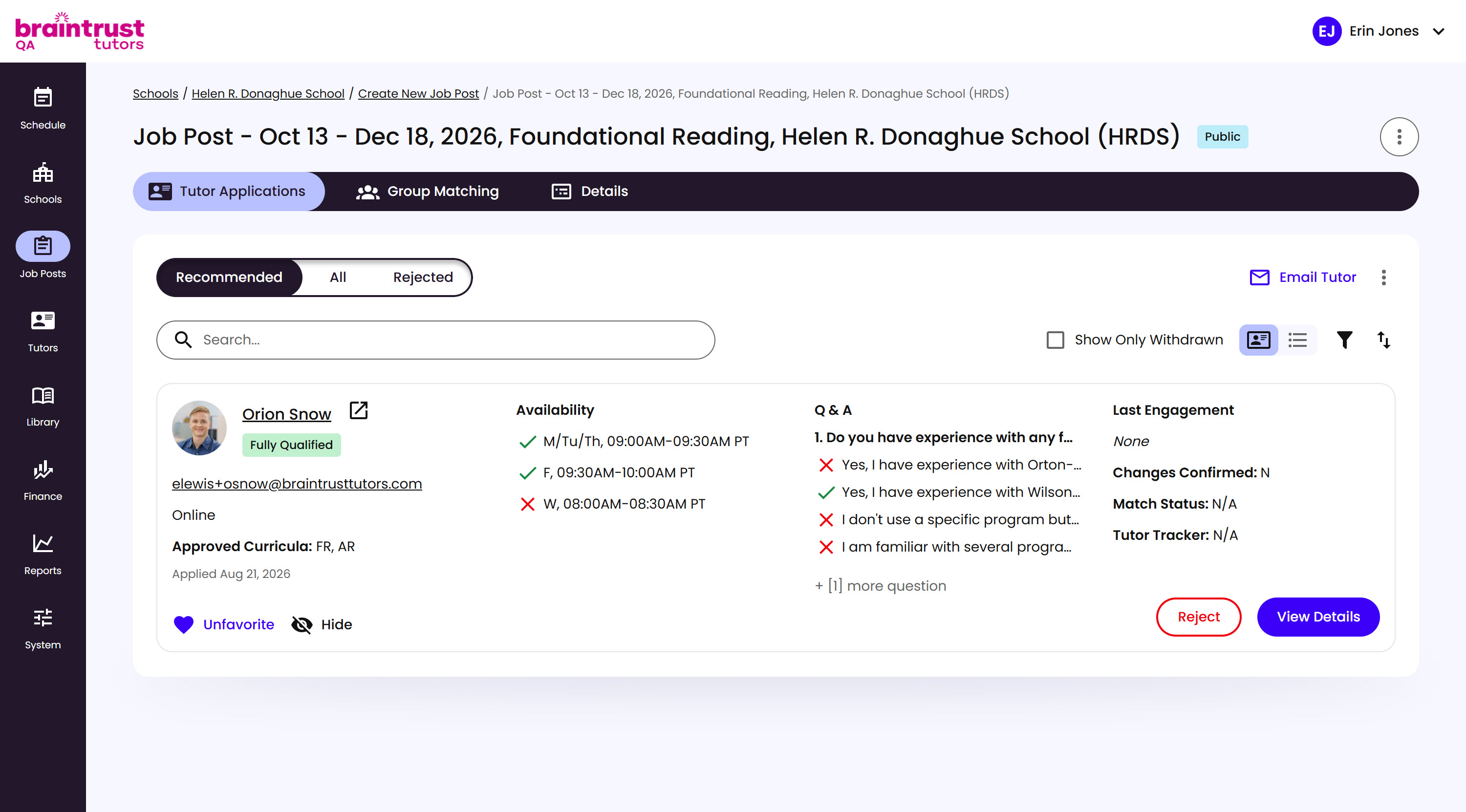
Every Job Post has its own Tutor Applications page, where every applicant shows up as a card with everything you need to evaluate them.
What’s on This Screen
- Recommended, All, and Rejected tabs, across the top. Recommended is the shortlist of Tutors who meet the Job Post’s requirements; All shows every applicant, including anyone who doesn’t; Rejected shows only Tutors you’ve declined.
- Search bar, for finding a specific applicant by name.
- Show Only Withdrawn, a checkbox for finding a Tutor who’s pulled their application. The All tab also has a Show Only Hidden checkbox.
- Card and list view, filter, and sort icons, alongside the checkboxes - see Card and List Views below for what changes in list view.
- Qualification badge, here Fully Qualified - how well the Tutor’s profile matches the Job Post’s requirements. See Qualification Badges below for the other tier.
- Approved Curricula, what this Tutor is actually cleared to teach, set when their Profile was approved.
- Availability, the Job Post’s configured time slots, checked wherever the Tutor is available.
- Q&A, the Job Post’s questions, with the Tutor’s selected answer checked and every other option marked with an X.
- Last Engagement, the Tutor’s most recent school engagements, if they’ve tutored before, and when each one ended.
- Favorite and Hide, at the bottom left, and Reject (see Declining Applicants next) and View Details (see Viewing Full Details below), at the bottom right.
- Email Tutors, at the top right, for messaging up to 20 applicants at once - see Emailing Tutors below.
Deciding whether a Tutor is a good fit usually comes down to a few of these together: Approved Curricula and Availability tell you if they can actually do the job, Q&A tells you how they answered whatever you asked, and Last Engagement gives you a read on their track record with other schools.
- Interested Subjects is what a Tutor says they’d like to teach, separate from Approved Curriculum, what you’ve actually cleared them for. Only you can see the Approved Curriculum side, so a Tutor listing a subject as Interested doesn’t mean they’re approved to teach it.
Favoriting a Tutor is what makes them a match candidate later - see Matching Tutors to Groups for how Favorited applications feed into that step.
Match Status and Tutor Tracker
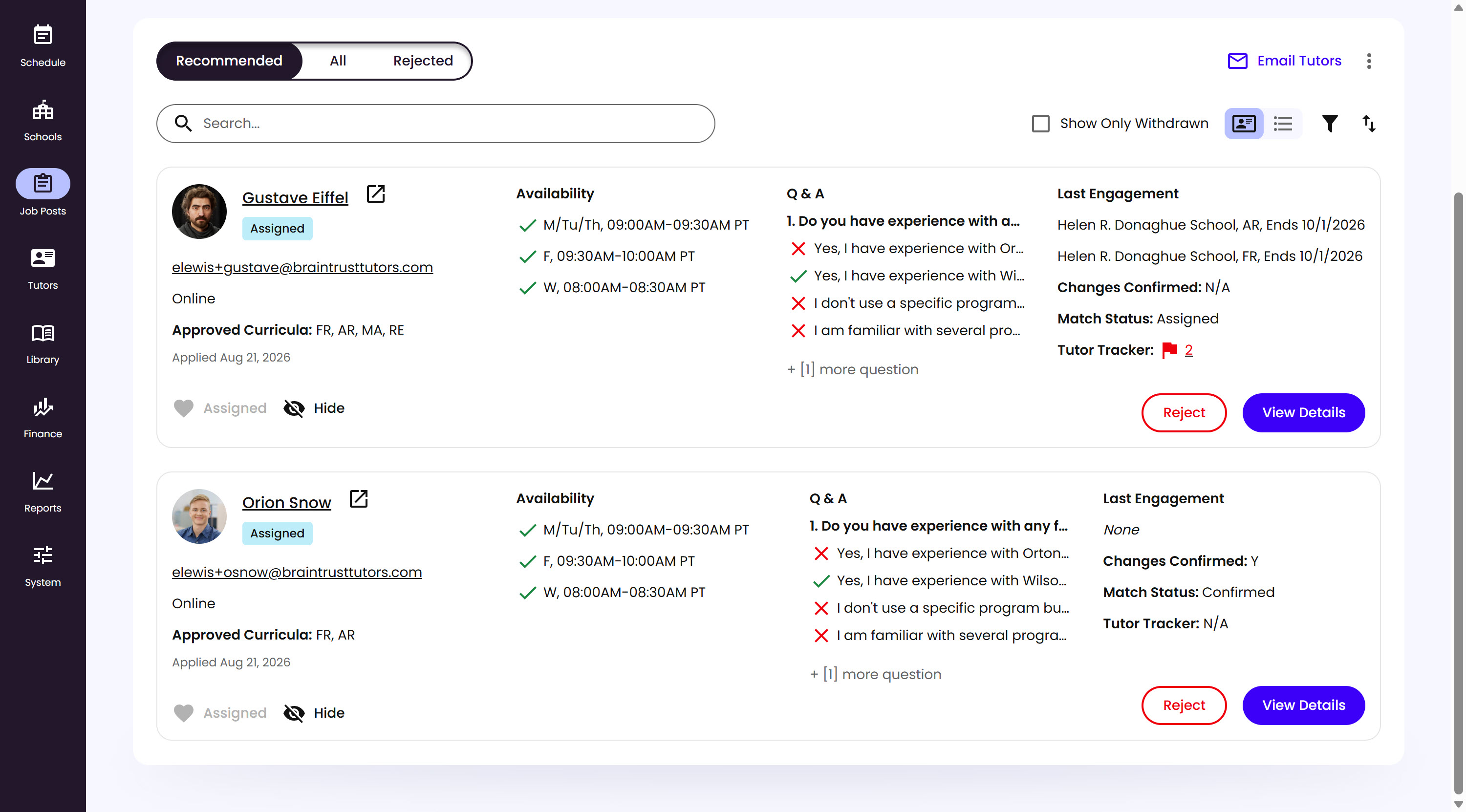
Two more fields track what’s happening elsewhere in the process, rather than anything about the application itself.
What’s on This Screen
- Changes Confirmed, Y or N, whether the Tutor has confirmed any changes you’ve made to the Job Post since they applied.
- Match Status, N/A until a match is made, then Assigned once you confirm a match, then Confirmed once the Tutor accepts - see Matching Tutors to Groups and Confirming the Match for that whole flow.
- Tutor Tracker, N/A for a Tutor with no history, or a red flag with a count for a Tutor who’s tutored before and has flagged concerns on record. Click the count to jump straight to that Tutor’s Tutor Tracker.
- Favorite, replaced by a grayed-out status label (like “Assigned”) once the Tutor is matched to a Group - there’s nothing left to favorite once they’re already placed.
Qualification Badges
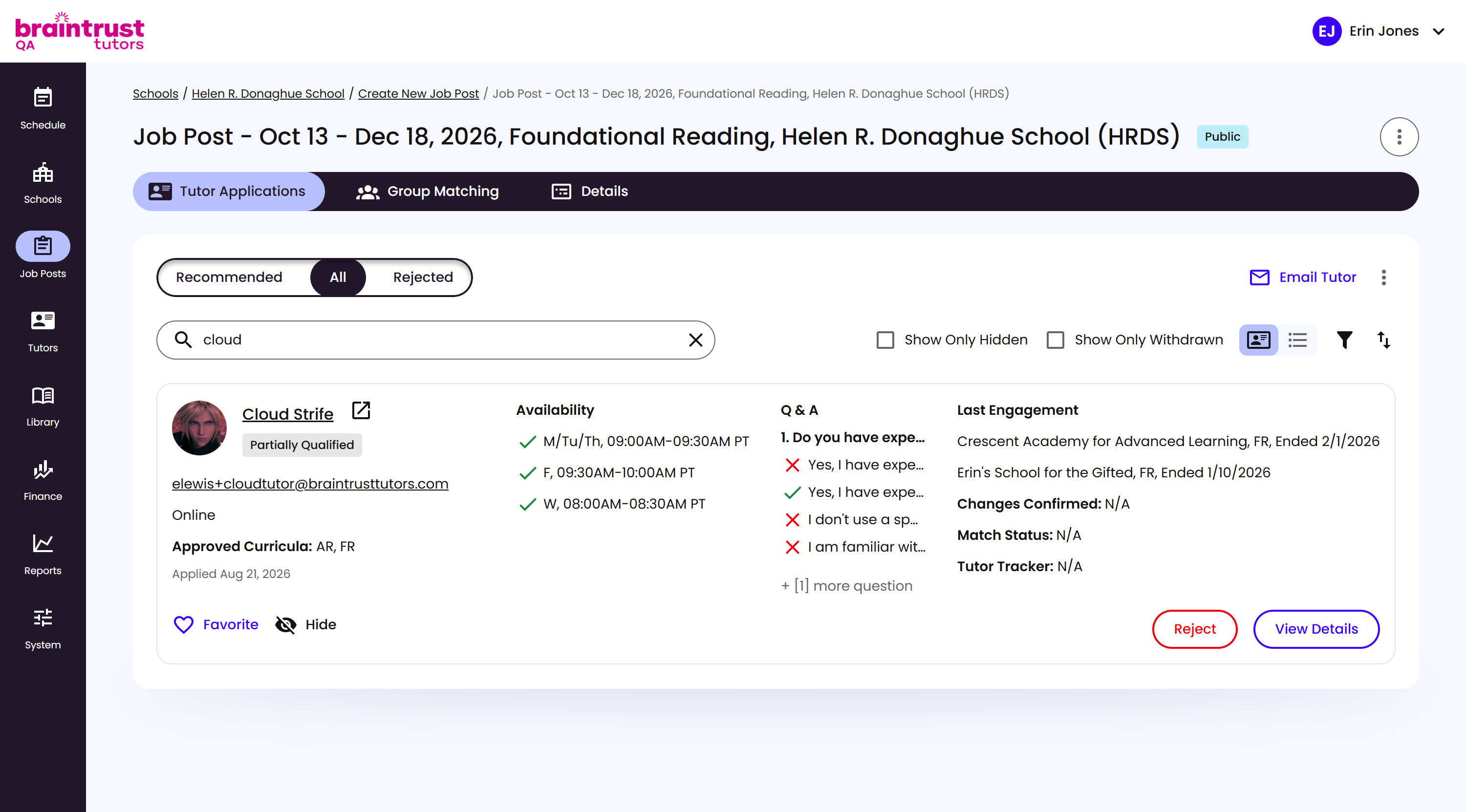
Every card carries a qualification badge showing how well the Tutor matches the Job Post’s requirements: Fully Qualified, or Partially Qualified if they fall short on one or more.
What’s on This Screen
- Partially Qualified badge, in place of Fully Qualified, on a Tutor whose profile doesn’t meet every requirement on the Job Post.
- All tab, selected here - a Partially Qualified application can still show up on All even though it didn’t make Recommended.
Hidden and Withdrawn Applications
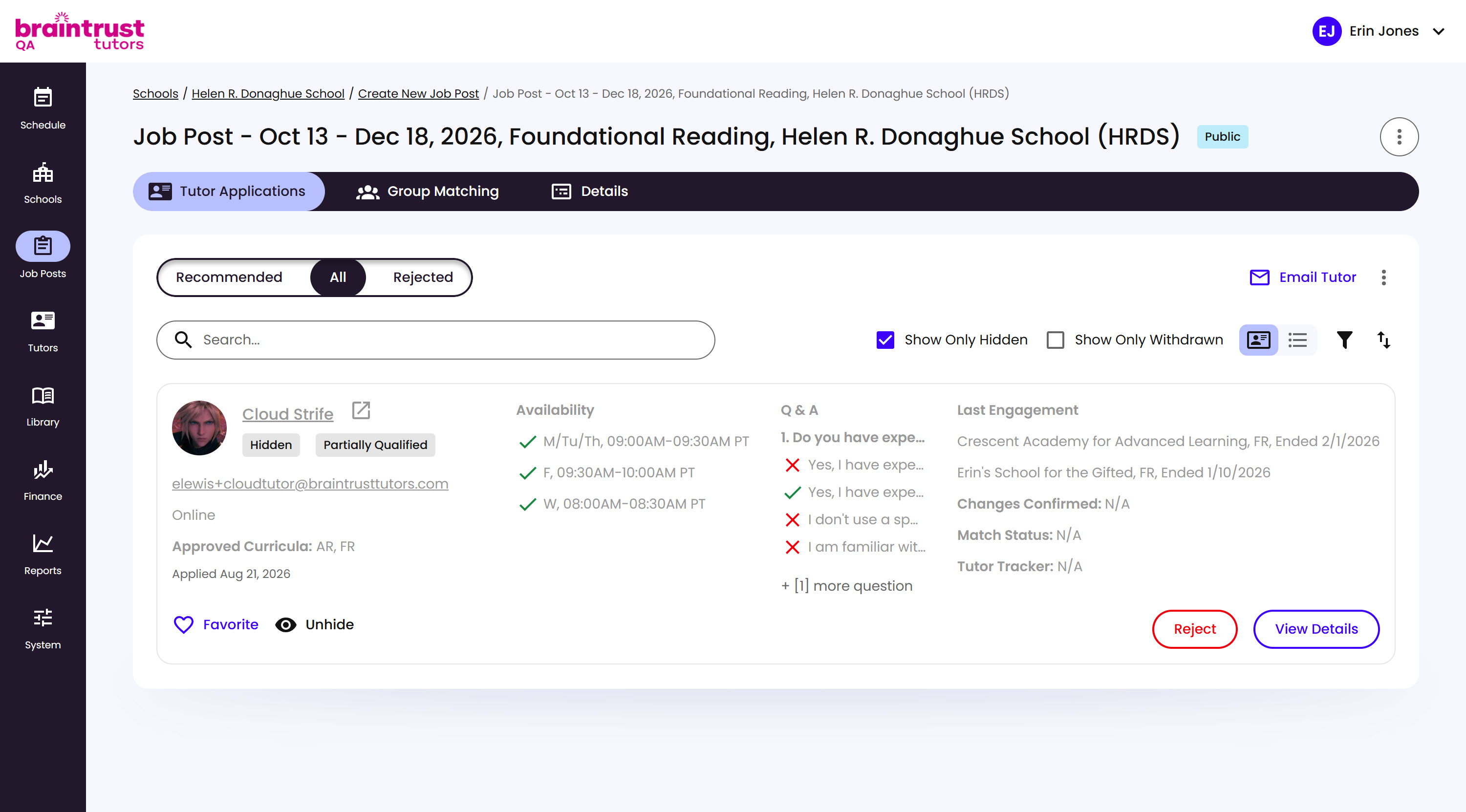
Hiding an application tucks it out of the way without rejecting it - useful for a Tutor you’re not ready to decide on yet. Check Show Only Hidden on the All tab to find it again.
What’s on This Screen
- Hidden badge, next to the qualification badge, on any application you’ve hidden.
- Unhide, in place of Hide, to bring the application back into view.
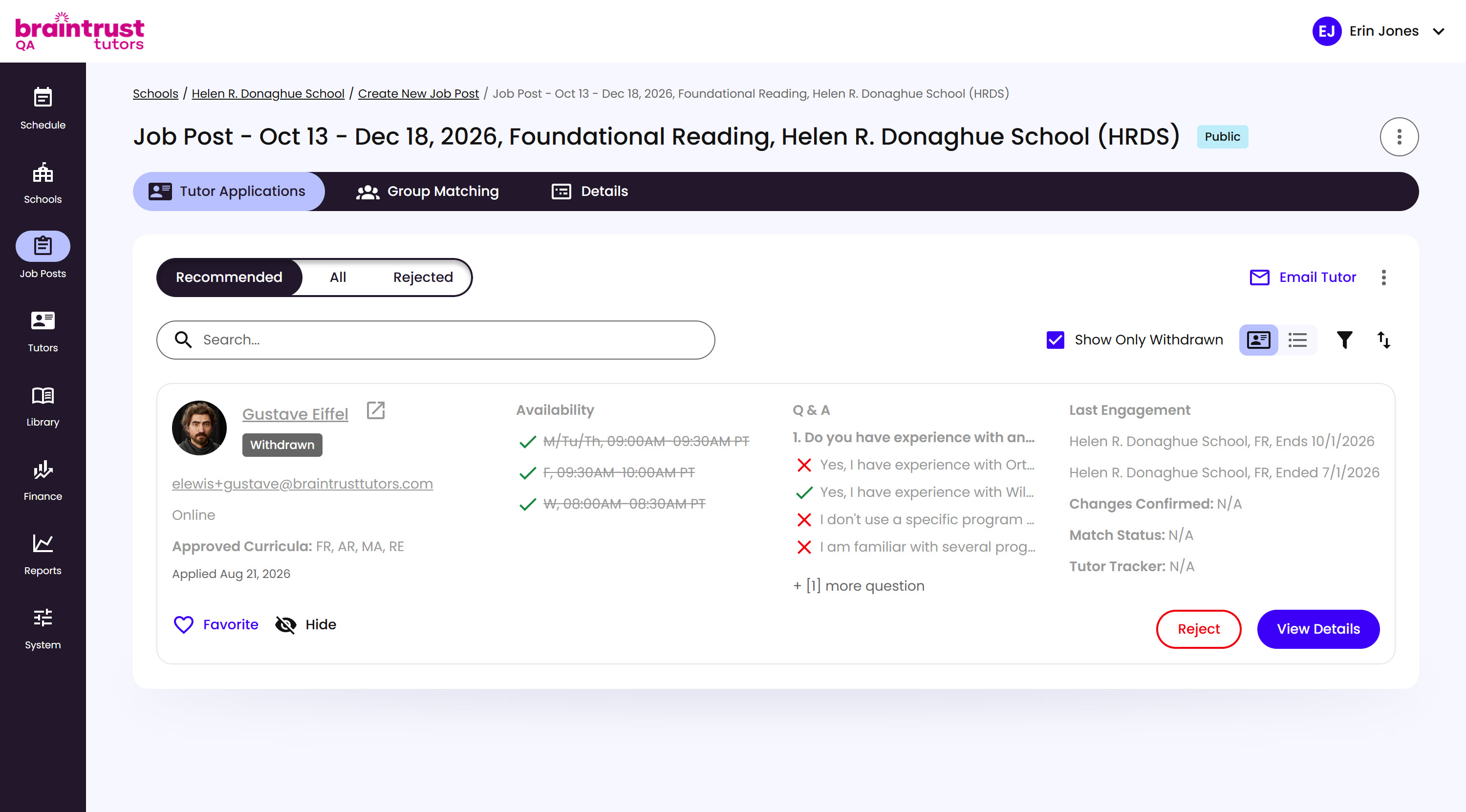
If a Tutor withdraws their own application, it’s marked Withdrawn instead of disappearing, so the record stays even though they’re no longer in your pool. Check Show Only Withdrawn on any tab to find one.
What’s on This Screen
- Withdrawn badge, on any application the Tutor has pulled.
- Crossed-out Availability, showing that those slots no longer apply.
Card and List Views
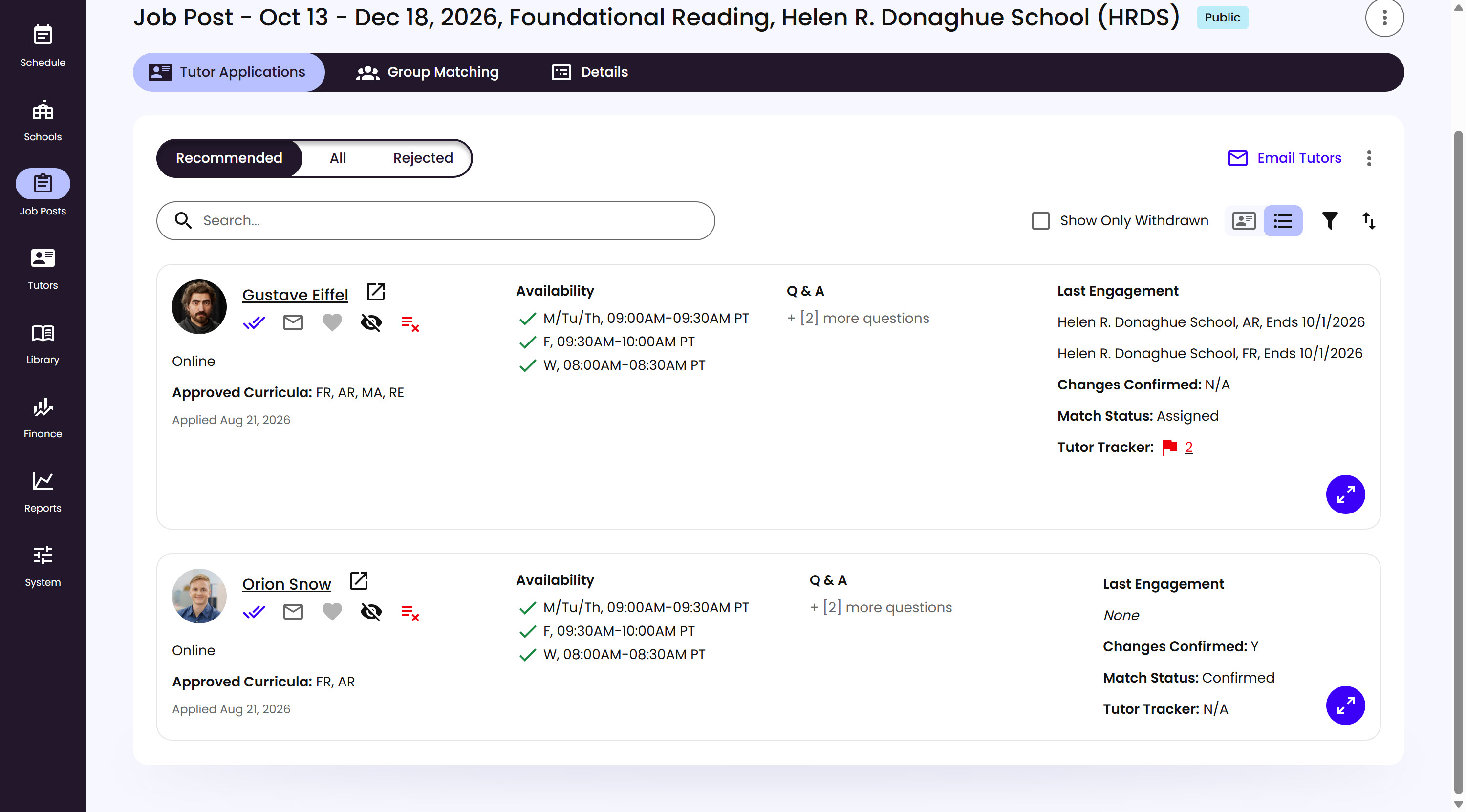
Switch to list view for a more compact, row-based layout - the same information and actions as card view, just as icons instead of buttons.
What’s on This Screen
- View toggle, next to the search bar, for switching between card view (the default) and this list view.
- Status icon, a checkmark summarizing the application’s state at a glance.
- Email, Favorite, Hide, and Reject icons, the same actions as the buttons in card view, just compact.
- Expand icon, at the end of the row, opens View Details.
Viewing Full Details
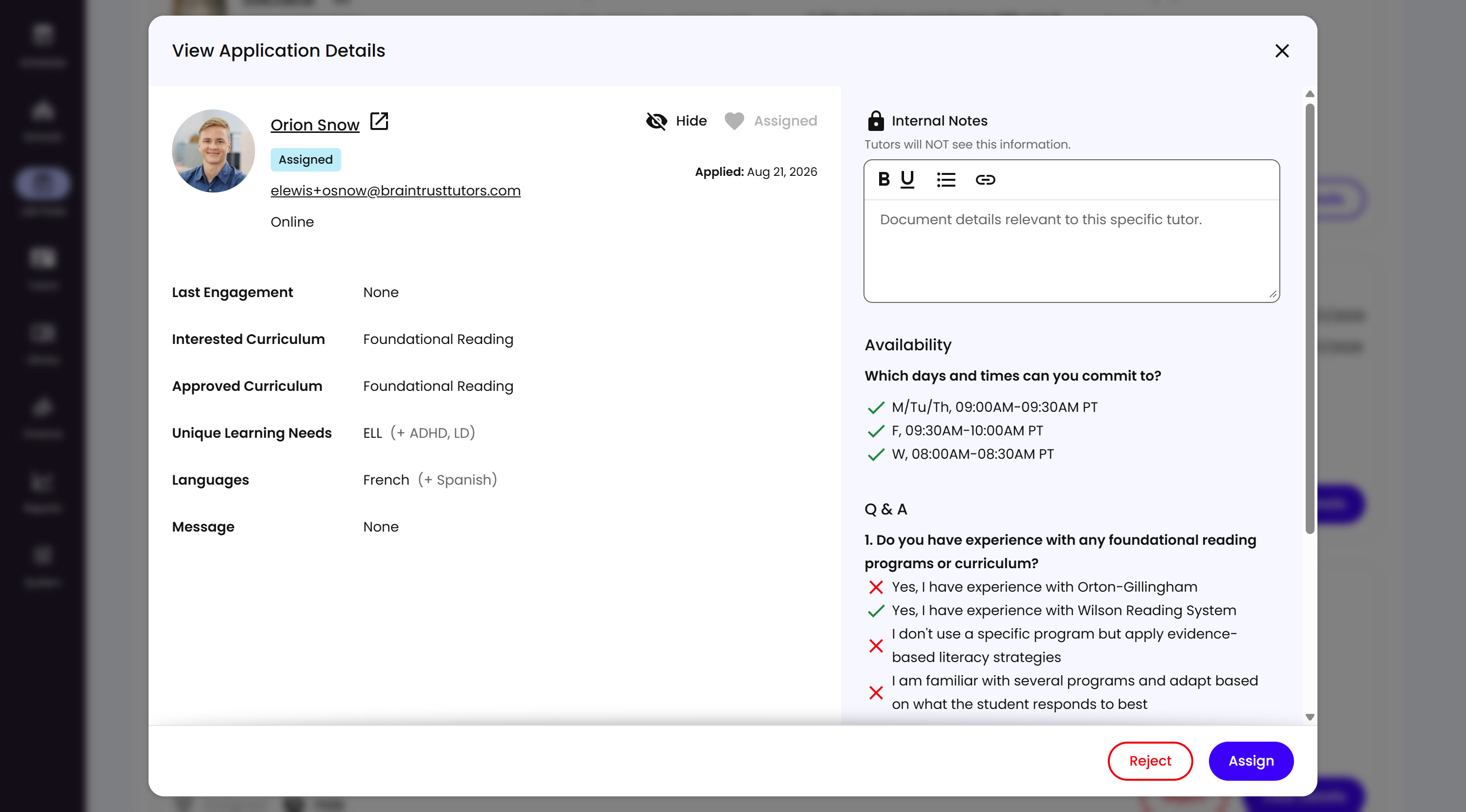
View Details opens everything about the application in one place, including a few fields the card itself doesn’t show.
What’s on This Screen
- Interested Curriculum, shown alongside Approved Curriculum here - see the Interested Subjects note above for the difference.
- Unique Learning Needs and Languages, any the Tutor’s profile doesn’t meet are shown in red, the same red-for-unqualified convention used when a Tutor previews a Job Post.
- Message, the free-text answer the Tutor wrote when applying.
- Internal Notes, a private text box only your team can see - Tutors never see this, no matter what you write.
- Reject and Assign buttons, at the bottom, for acting on the application right from this view.
Emailing Tutors
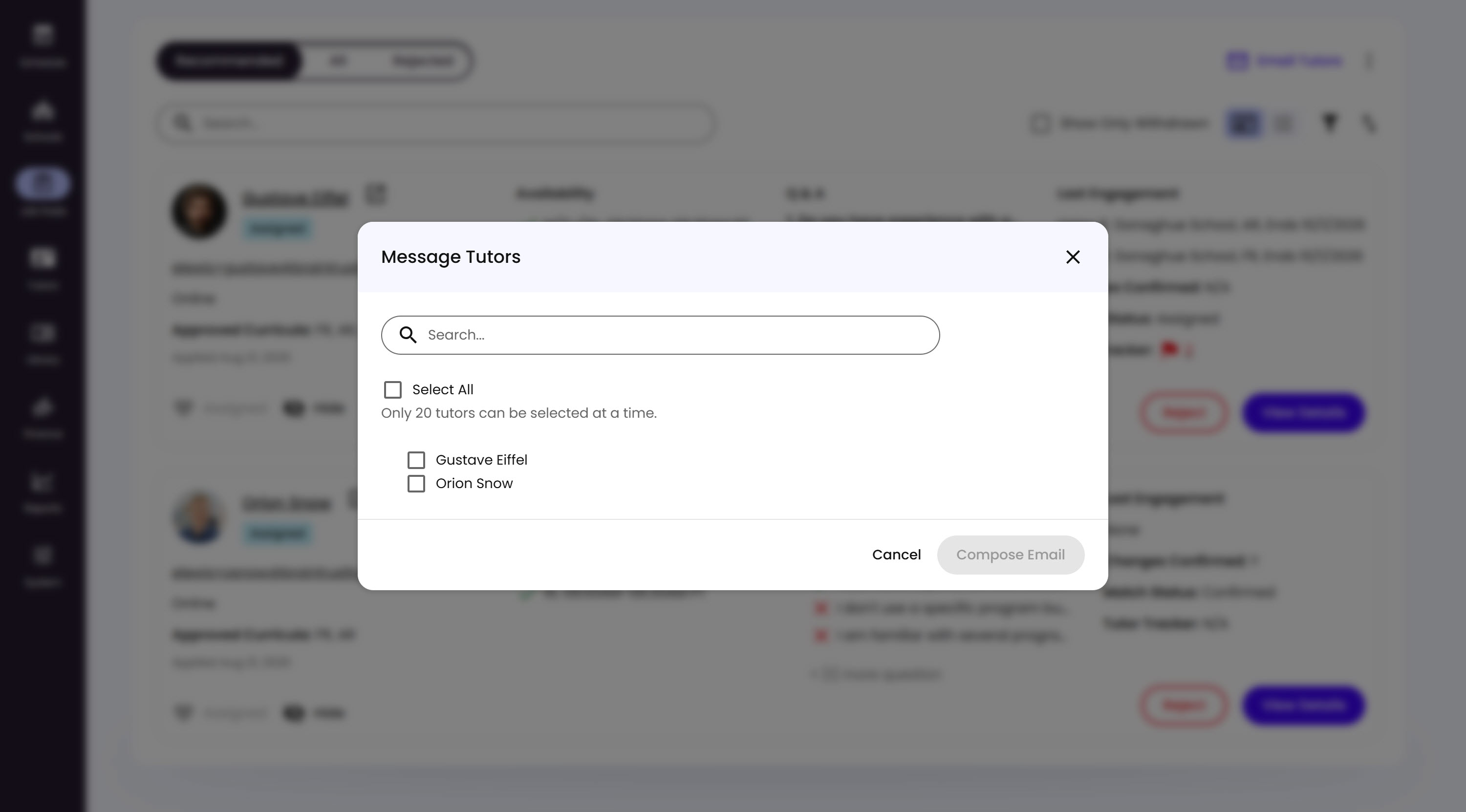
Email Tutors lets you message up to 20 applicants at once.
What’s on This Screen
- Search bar, for finding a specific Tutor in the list.
- Select All, checks every Tutor at once, up to the 20-Tutor limit.
- Tutor checkboxes, for picking individually.
- Compose Email, opens your device’s default mail app with everyone you selected already BCC’d, ready for you to write your own message.