
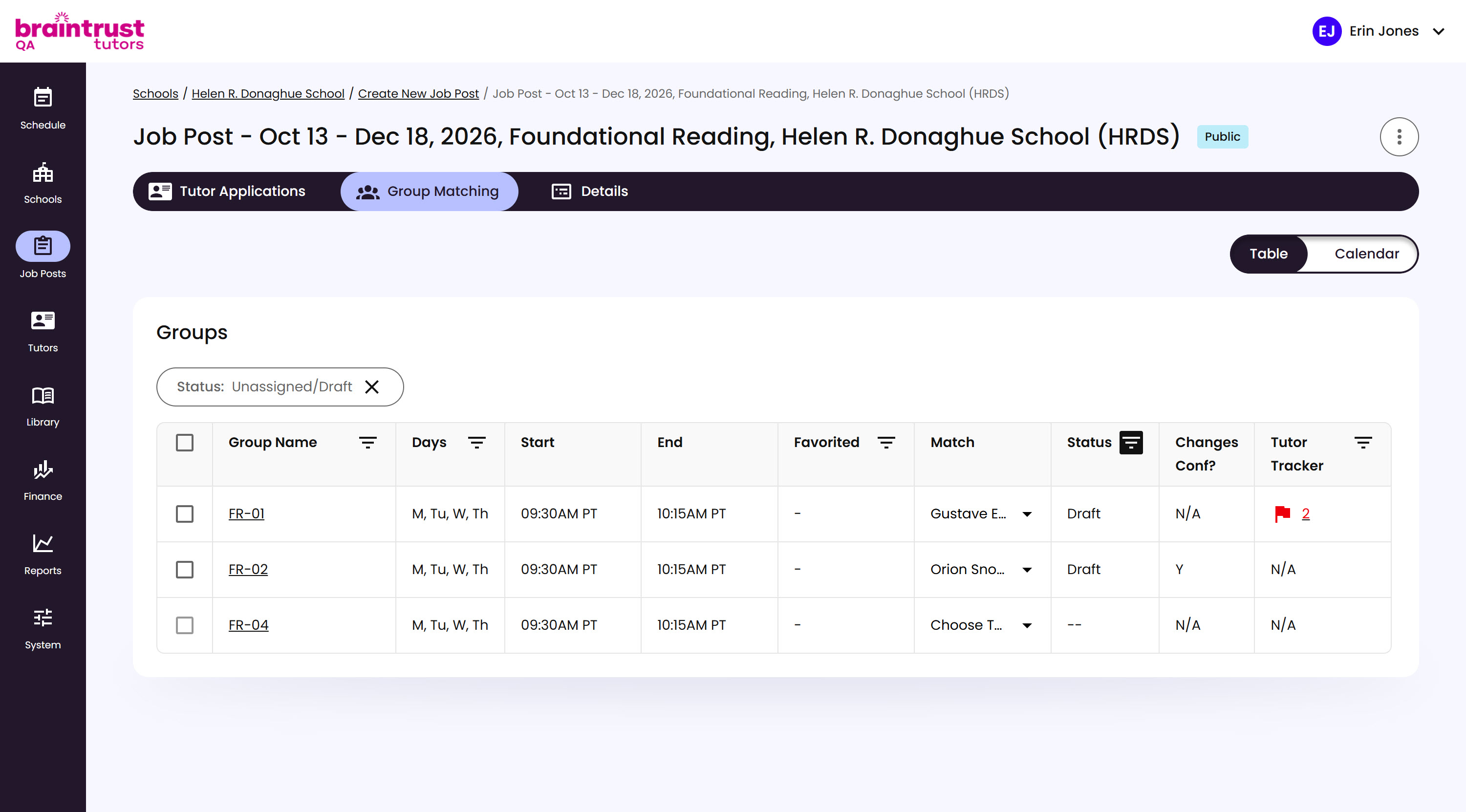
Submitting a match puts the Group into a Draft status, giving you a chance to double check everything before committing. If a Tutor has any active flagged concerns, the same flag icon and count from their application follows them into the Tutor Tracker column, so you don’t lose that visibility while matching.
What’s on This Screen
- Tutor Tracker flag, a red flag icon with a count, on any Group whose matched Tutor has active flagged concerns.
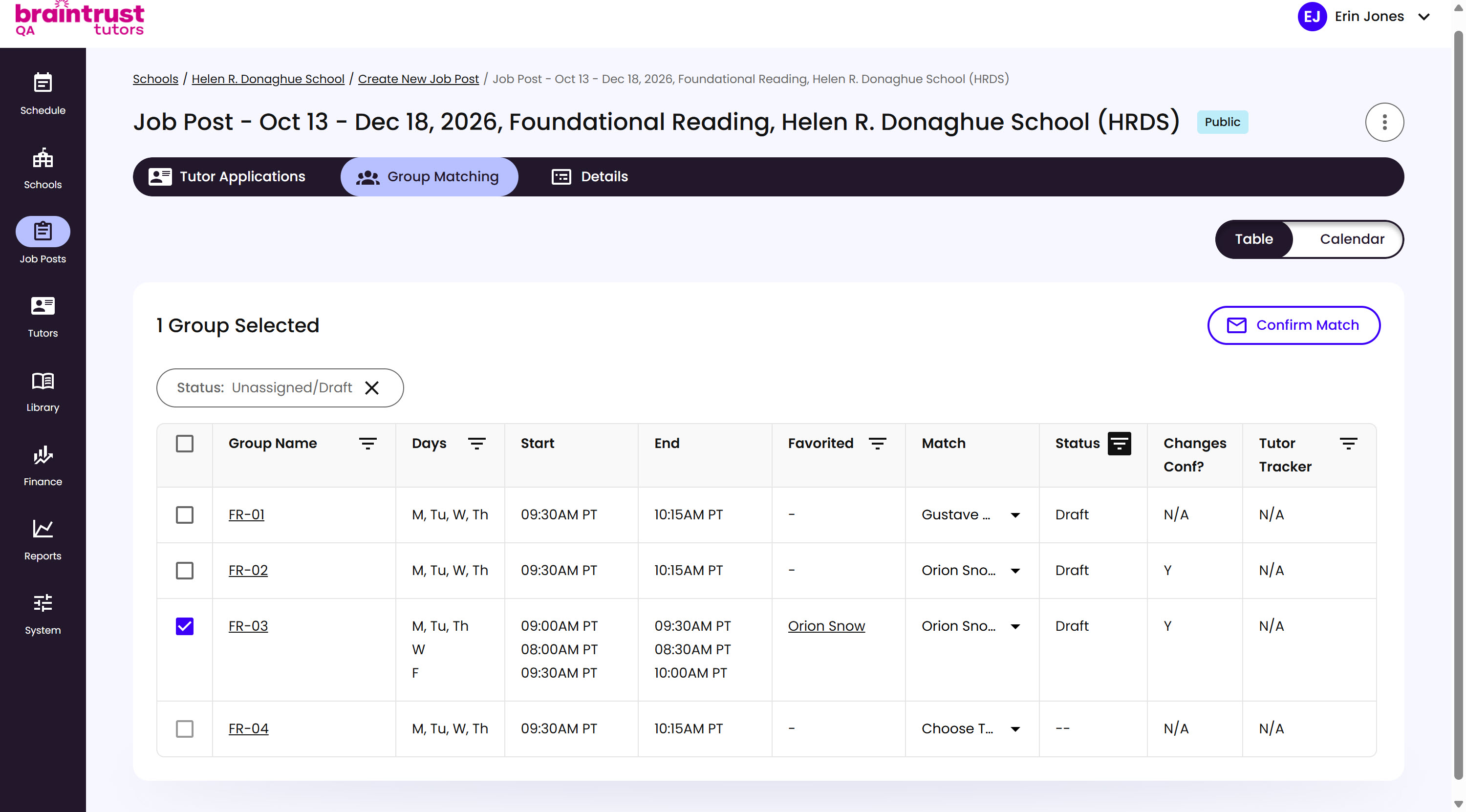
When you’re ready, check the box next to the Group (or several at once) and click Confirm Match.
What’s on This Screen
- Group Selected count, replacing the Groups heading once you check a box.
- Confirm Match, a button that appears once at least one Group is selected.
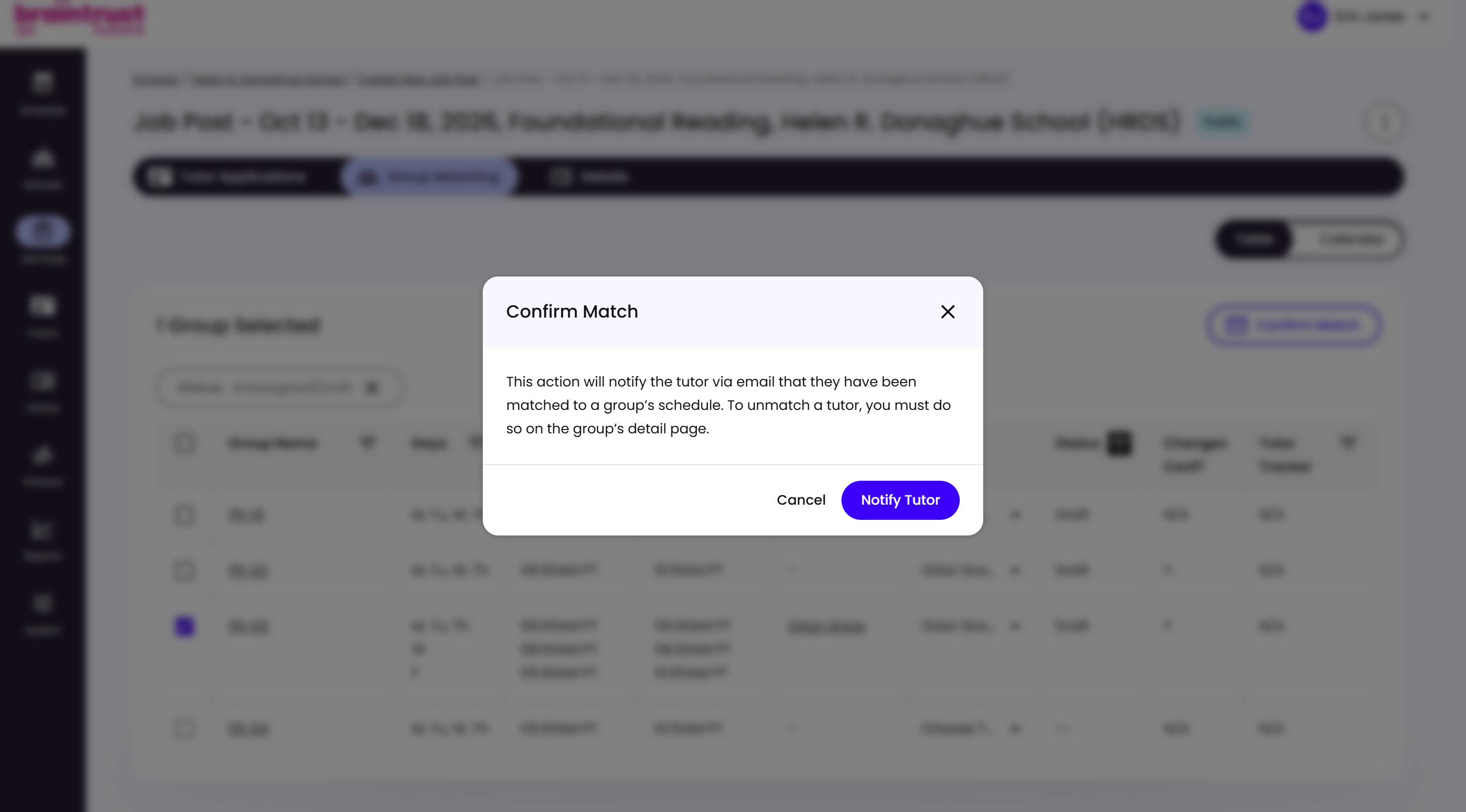
Confirm Match opens a modal explaining what happens next.
What’s on This Screen
- Explanation text, noting that this notifies the Tutor by email, and that unmatching a Tutor has to be done from the Group’s own detail page instead - see Matching Directly from Tutor History next.
- Cancel and Notify Tutor buttons, to back out or confirm.
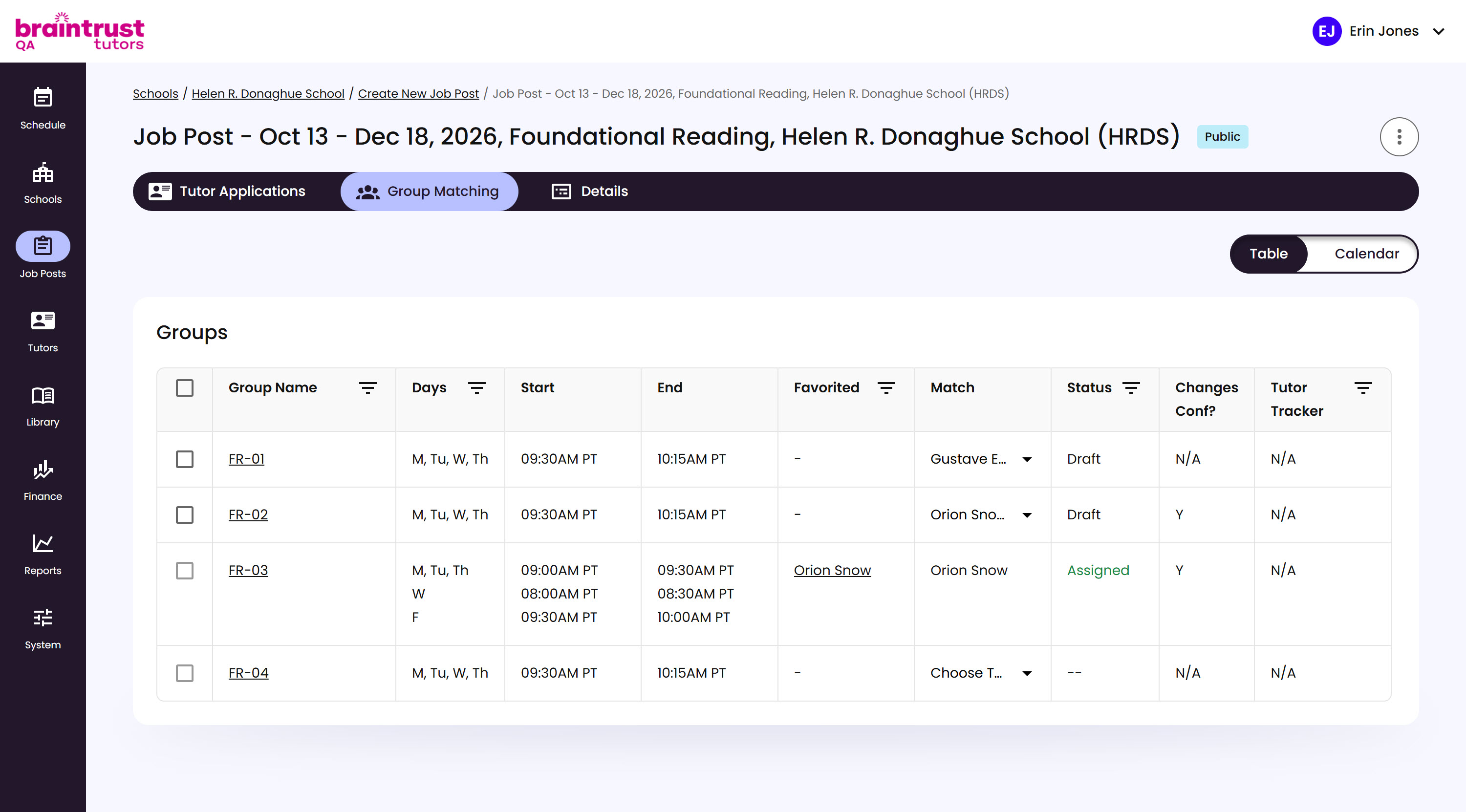
Clicking Notify Tutor moves the Group’s Status from Draft to Assigned and sends the match email - since a Group needs its schedule set before it can even show up here to match (see Finding a Group to Match above), sessions are already in place by this point, so the email always goes out right away. They haven’t confirmed on their end yet.
What’s on This Screen
- Status: Assigned, replacing Draft once you’ve confirmed the match and the Tutor’s been notified.
Status only updates to Confirmed once the Tutor confirms the match on their own end.
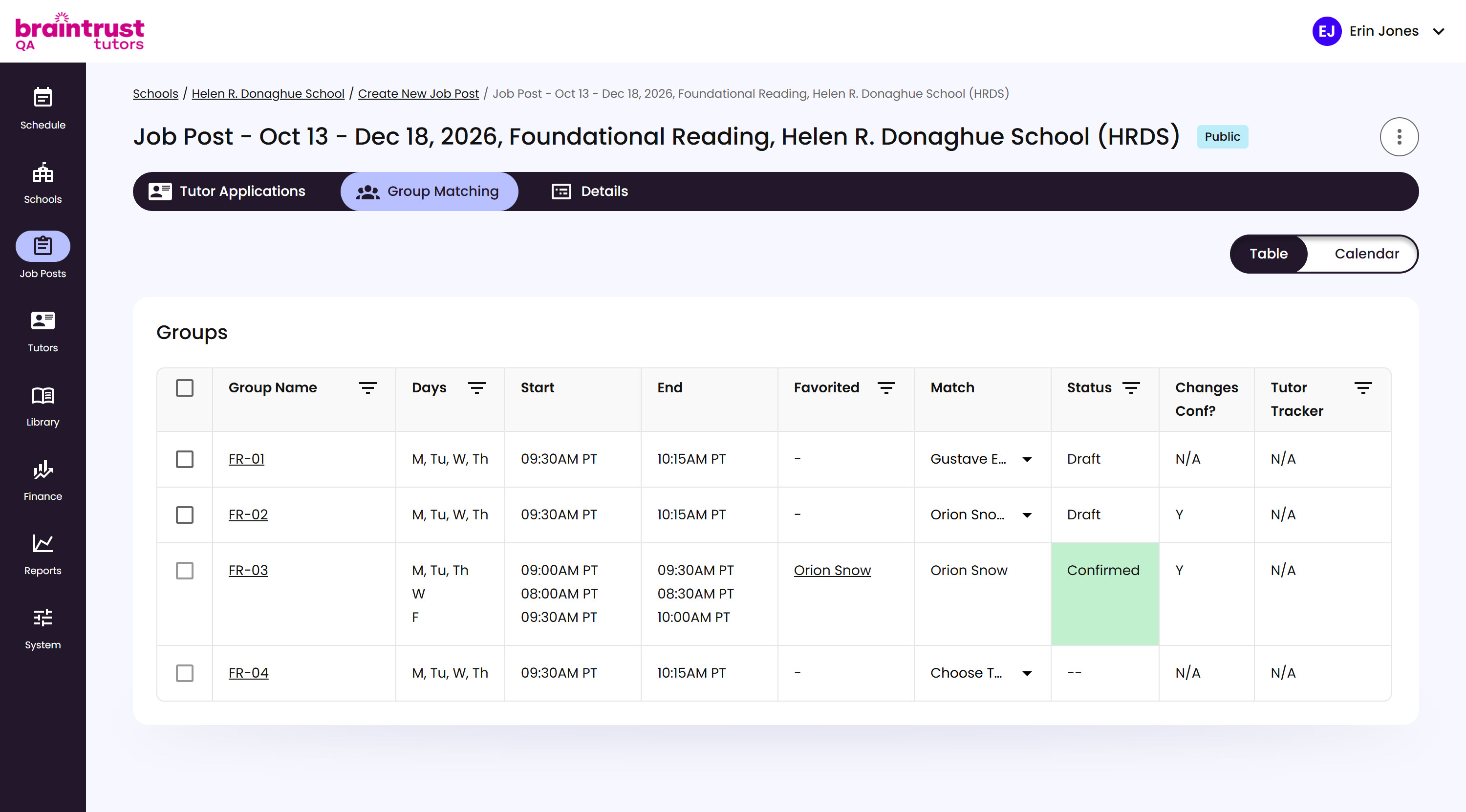
What’s on This Screen
- Status: Confirmed, highlighted green, once the Tutor has accepted the match.
See Confirming the Match for what the Tutor sees at that point, and what happens if they withdraw instead.