
A Group’s Session History tab lists every session that’s happened, with what was taught and how it went.
What’s on This Screen
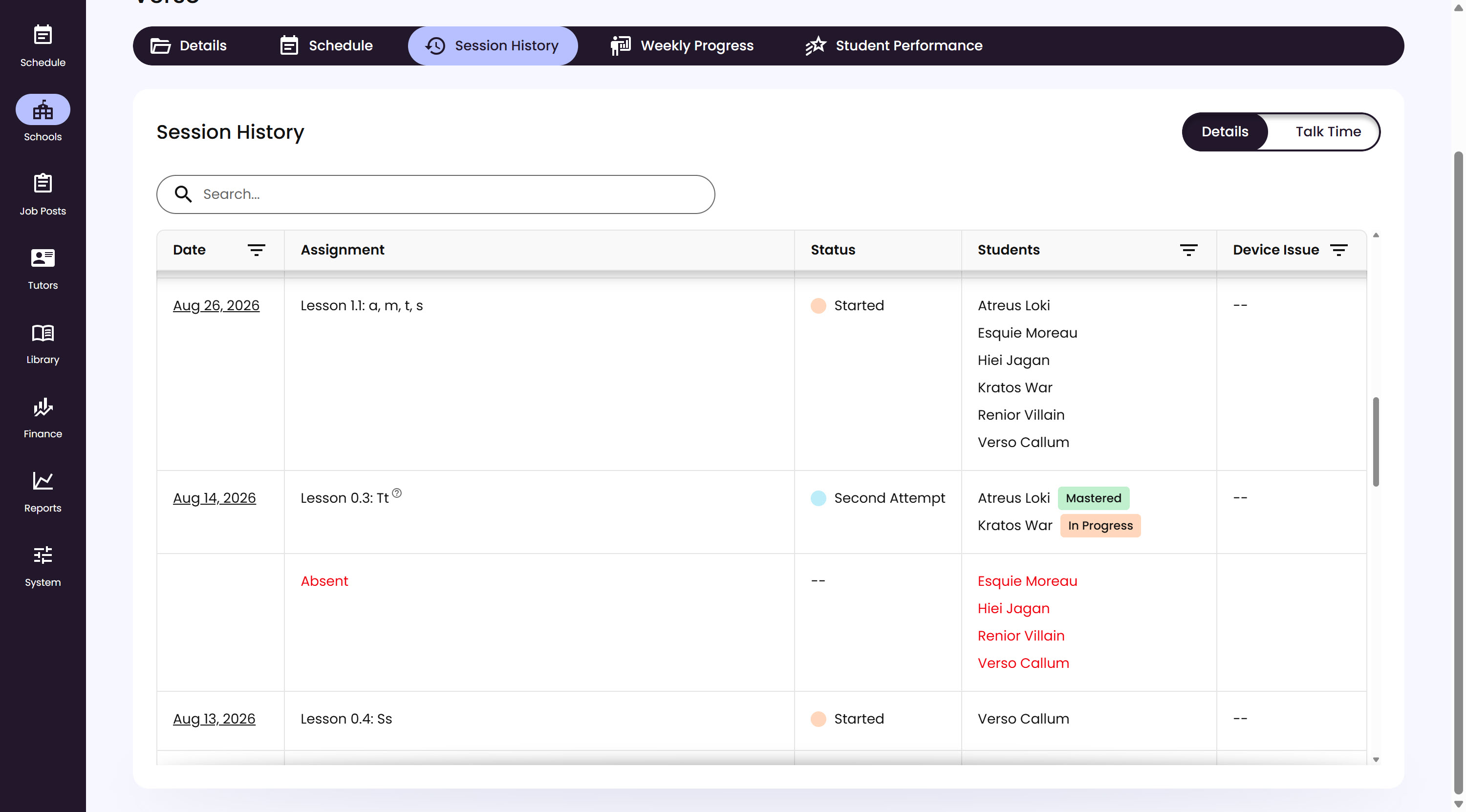
- Details and Talk Time toggle, at the top right. Talk Time switches to a Session Talk Time table, covered below.
- Search bar, for finding a Session by its Assignment or Student.
- Date, links to that week’s Weekly Progress Report. See Weekly Progress for what’s on that page.
- Assignment, the Lesson or Assessment assigned for that Session. A Session with at least one absent Student shows a second row for that same Session, with Absent here instead, indicating no attendance was marked for that Student, either automatically or manually by a Tutor.
- Status, what’s happened with the Session’s Assignment so far:
--, nothing has been launched or started by any Student yet.- Started, at least one Student has started it.
- Complete, at least one Student has completed the last activity.
- Second Attempt, the Lesson was reassigned after the Student had already completed all its activities in a prior session. Each time it’s fully completed and reassigned again, the count keeps climbing: Third Attempt, and so on. If a Student only partially completed a Lesson before it’s reassigned, that’s treated as continuing instead, with no status change.
- Students, each with a badge for their individual skill progression on that Lesson. Visible to System Managers only.
- Device Issue, any issue the Tutor reported during the Session, like microphone, speaker, or wifi problems. This gets escalated to the Facilitator by email.
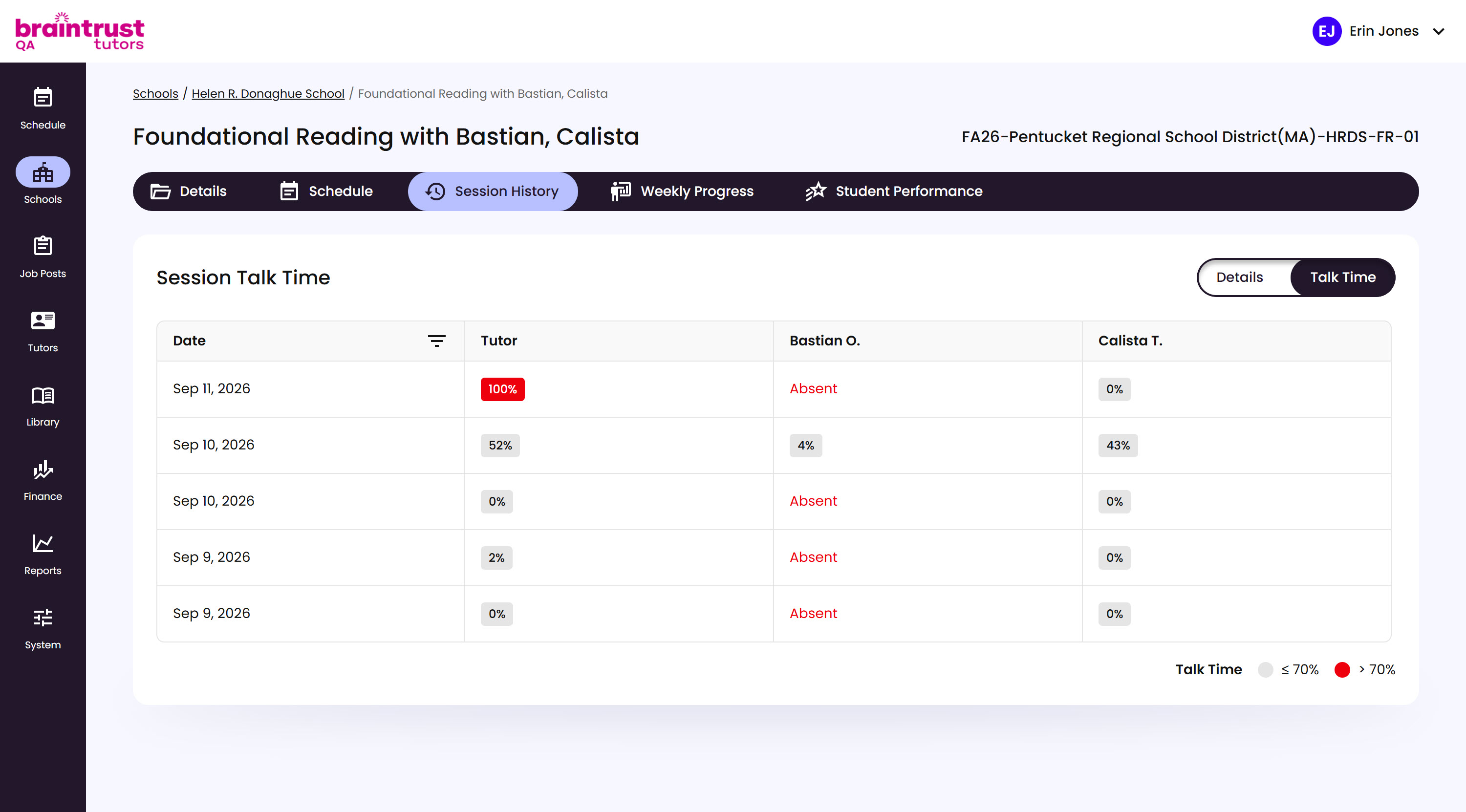
Switching to Talk Time replaces the table with Session Talk Time, breaking down how much each Tutor and Student spoke during a Session.
What’s on This Screen
- Date, one row per Session.
- Tutor, and one column per Student in the Group, each showing that person’s percentage of talk time for the Session, or Absent if they weren’t there.
- Legend, at the bottom right, marking the same threshold as the color-coded percentages: