
Instead of the Job Post’s Group Matching table, you can match a Tutor to a Group directly from the Group’s own Details page, in its Tutor History section - the record of every Tutor Agreement for that Group, who’s taught it, and when. This isn’t an extra step on top of the table above; it’s a separate route to the same result, and either one is enough on its own. Removing or replacing a Tutor, though, always happens here, no matter which route you used to match them in the first place.
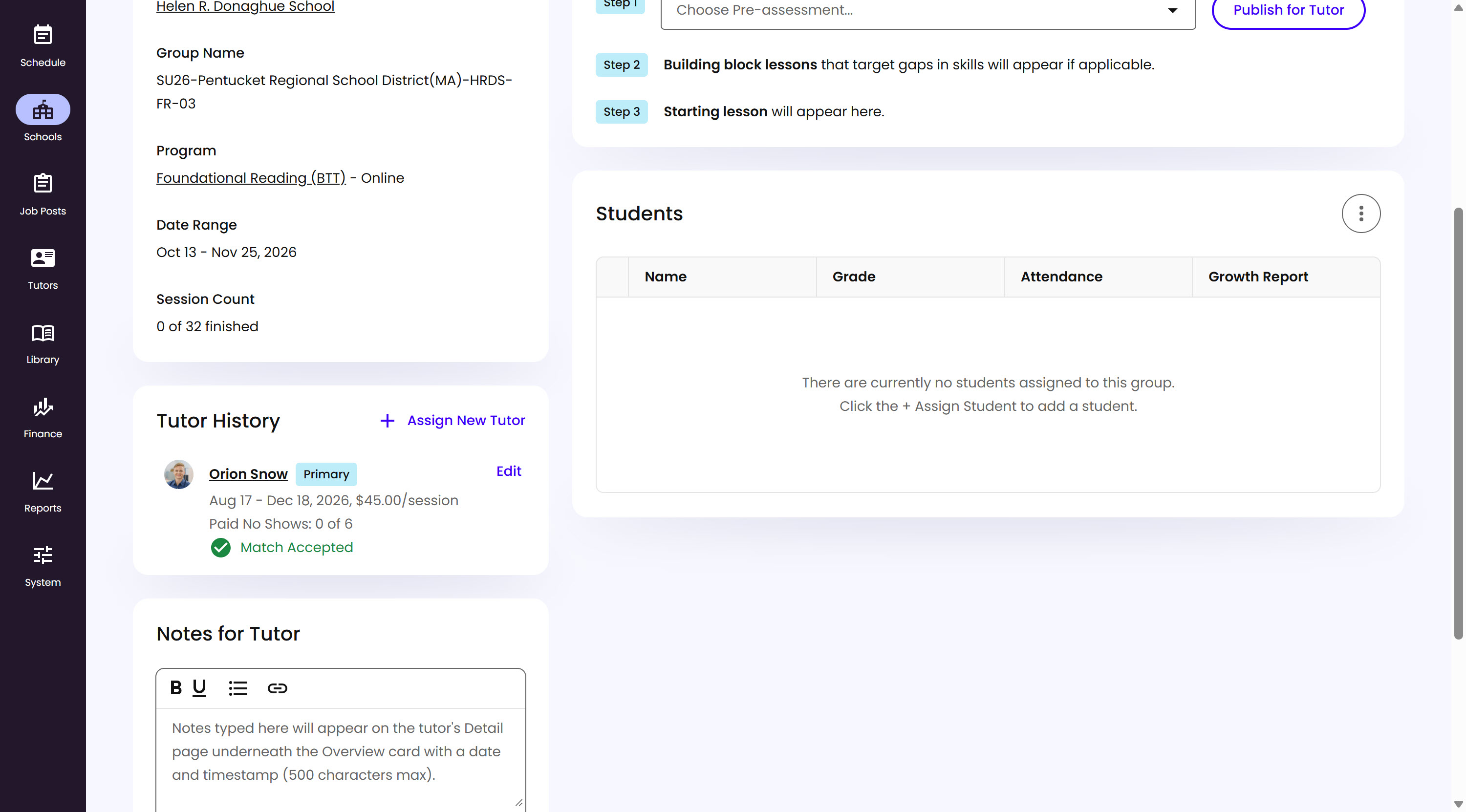
What’s on This Screen
- Tutor History card, listing every Tutor Agreement for this Group - the Tutor’s name, a Role badge, the agreement’s date range and rate, Paid No Shows, and a status like Match Accepted.
- Assign New Tutor, opens the Assign a Tutor modal to add someone.
- Edit, next to an existing agreement, for changing its details.
Assigning a Tutor
Assign New Tutor opens a modal for adding anyone to the Group, whether as the Primary Tutor or a Substitute.
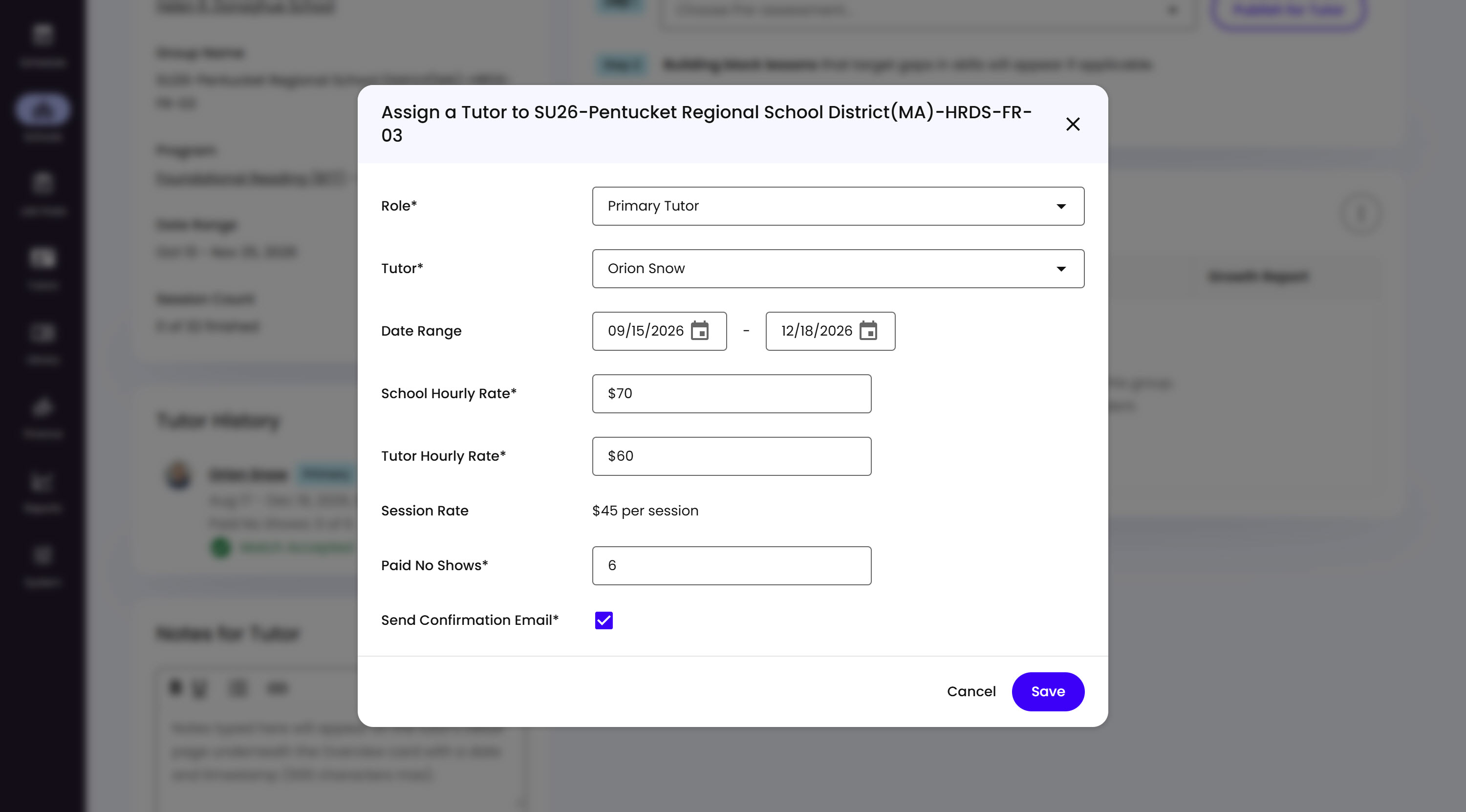
What’s on This Screen
- Role, Primary Tutor or Substitute.
- Tutor, who to assign.
- Date Range, scoping the agreement - use a short range to add a Substitute for just a one-off day or a few weeks while the Primary Tutor is unavailable, rather than replacing them outright.
- School Hourly Rate and Tutor Hourly Rate, the rates for this agreement.
- Session Rate, calculated automatically from the Tutor Hourly Rate.
- Paid No Shows, how many no-shows are covered.
- Send Confirmation Email, checked by default - uncheck it if you don’t want this specific assignment to notify the Tutor.
- Cancel and Save buttons, to back out or confirm.
If you leave Send Confirmation Email checked, the Tutor gets an email with an Accept Match button - unlike the Job Post route’s match email, there’s no Withdraw option here, since this assignment didn’t come from an application in the first place. The email shows the date range of the Tutor’s own scheduled sessions rather than the Program’s overall dates, falling back to the agreement’s dates if none are scheduled yet.
Removing a Tutor
A Tutor can only be removed from Tutor History if they haven’t taught a Session that requires (or already has) a Weekly Progress Report - once either of those is true, they’re locked into the Group’s history for good.
If sessions are scheduled but haven’t started yet, a matched Tutor sees them on their own personal calendar. Removing or replacing that Tutor unassigns those not-yet-started sessions - they stay unassigned until a replacement is added, or move to the replacement right away if one already exists. Any session the original Tutor already taught stays assigned to them regardless - their own teaching record never changes after the fact.