
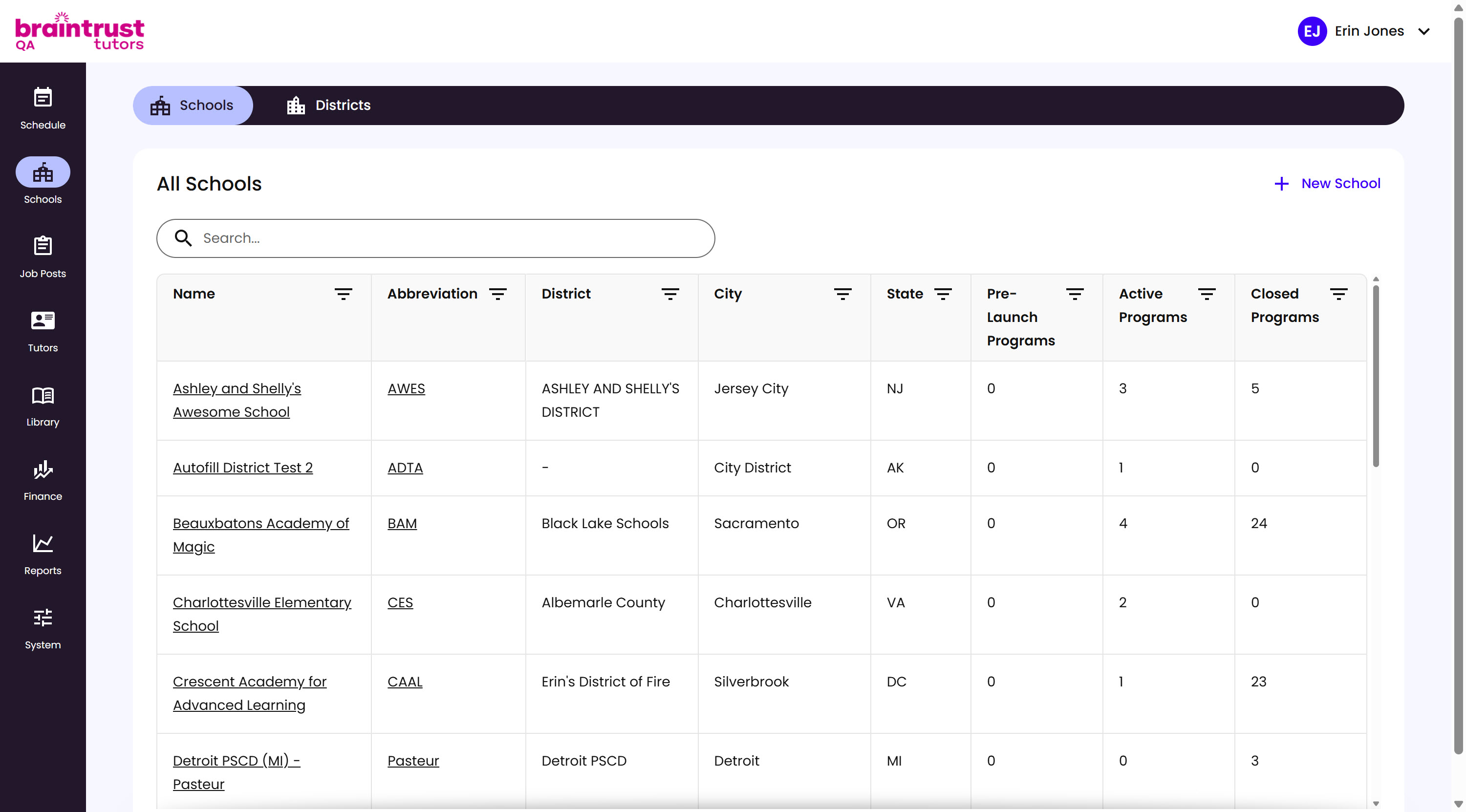
Once a School exists, you’ll find it again from the Schools list - a lot of useful information about every School shows right in the table, without having to open each one.
What’s on This Screen
- Schools and Districts tabs, at the top, for switching between the School list and the District list.
- Search bar, for finding a School by name.
- Name, the School’s name, linking to its own page.
- Abbreviation, the School’s short code.
- District, which District the School belongs to, if any.
- City and State, the School’s location.
- Pre-Launch Programs, Active Programs, and Closed Programs, a count of the School’s Programs in each status, so you can tell at a glance how much is still ramping up versus already running or wrapped up.
- New School, at the top right, opens the Create New School modal - see Creating the School above.
Clicking a School’s name takes you to its Programs tab - the first tab under a School - where you’ll create and manage its Programs. See Creating the Program next.