
School Faculty accounts are what let school and district staff sign into the platform to see their own schedule, students, and reports. You manage them from the same Details tab, in the School Faculty panel, using + New School Faculty or + New District Faculty.
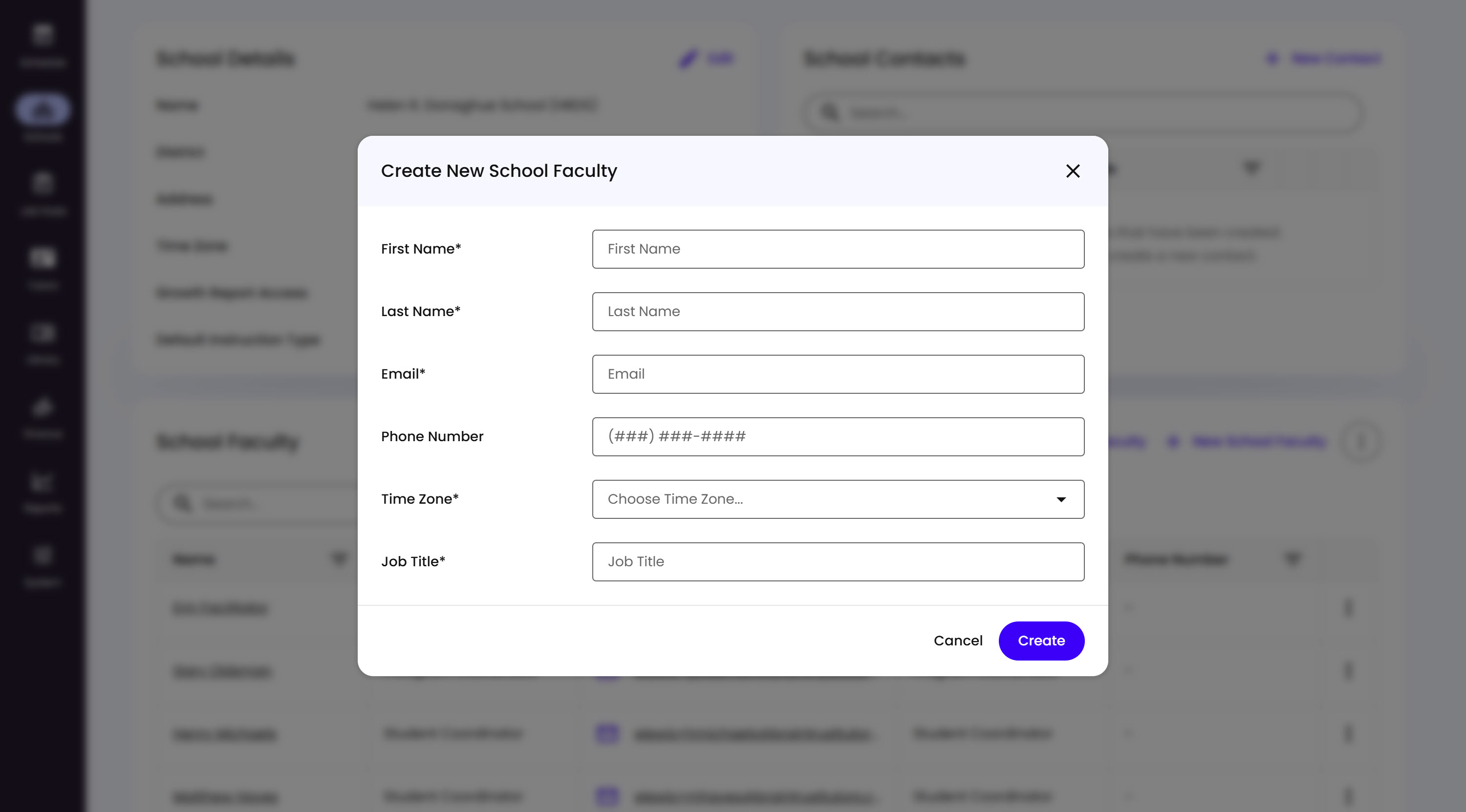
What’s on This Screen
- First Name and Last Name, required.
- Email, required.
- Phone Number, optional.
- Time Zone, required.
- Job Title, required - their actual job title at the School, like Principal or IT Coordinator. It’s separate from the Faculty Roles you assign afterward, which control what they can actually do in the platform.
- Cancel and Create buttons, to back out or confirm.
Creating a District Faculty works almost the same way, from the same panel, with two differences: it also asks which School(s) and Roles to assign right away.
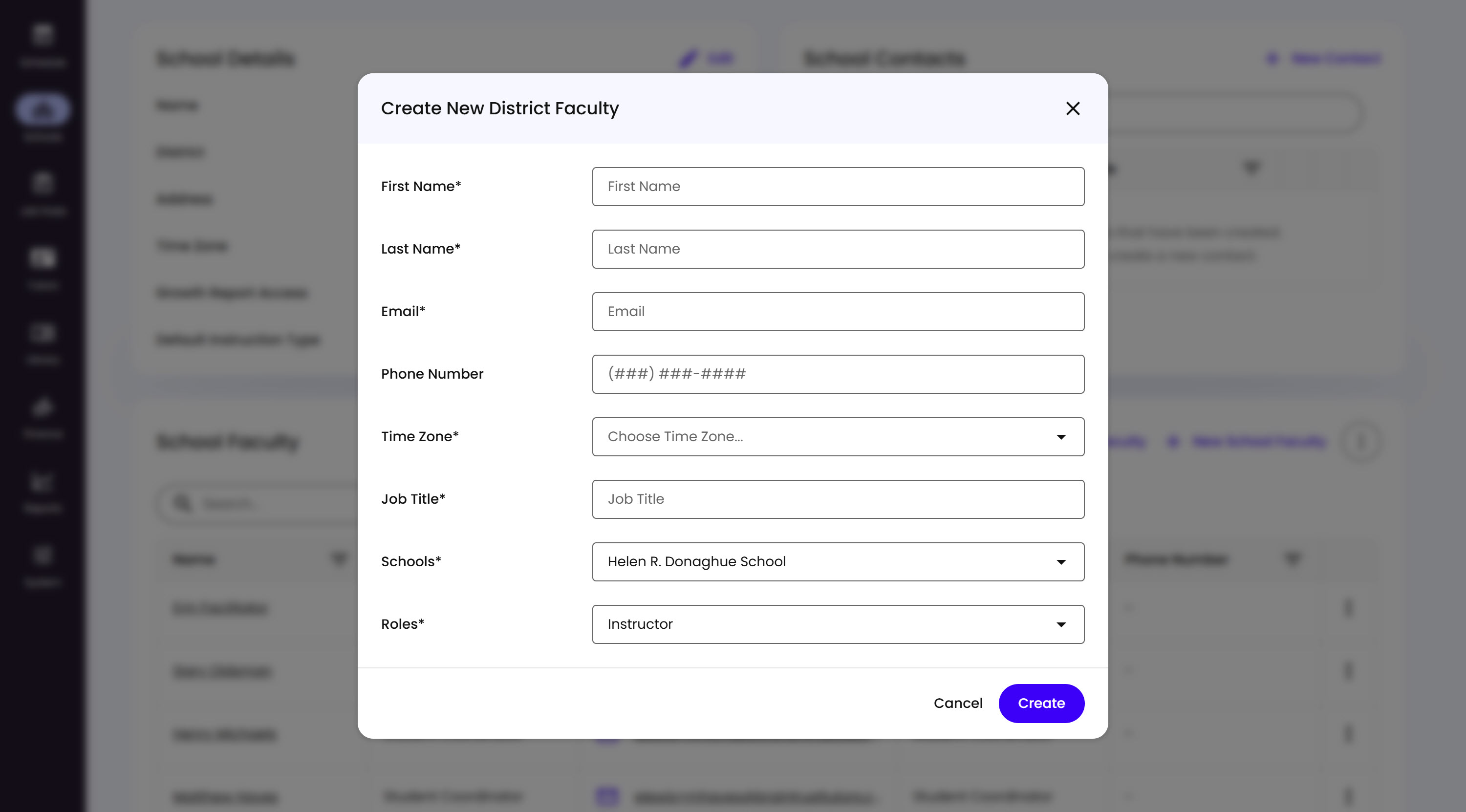
What’s on This Screen
- First Name, Last Name, Email, Phone Number, Time Zone, and Job Title, the same fields as School Faculty.
- Schools, required - which School(s) this District Faculty covers.
- Roles, required - their role(s), assigned right from creation.
- Cancel and Create buttons, to back out or confirm.
Click any Faculty member’s name to open their own Faculty Details page, where you can edit their info, manage their roles, and lock, archive, or reset the password on their account. The three-dot options menu at the top right gives you three account-level actions.
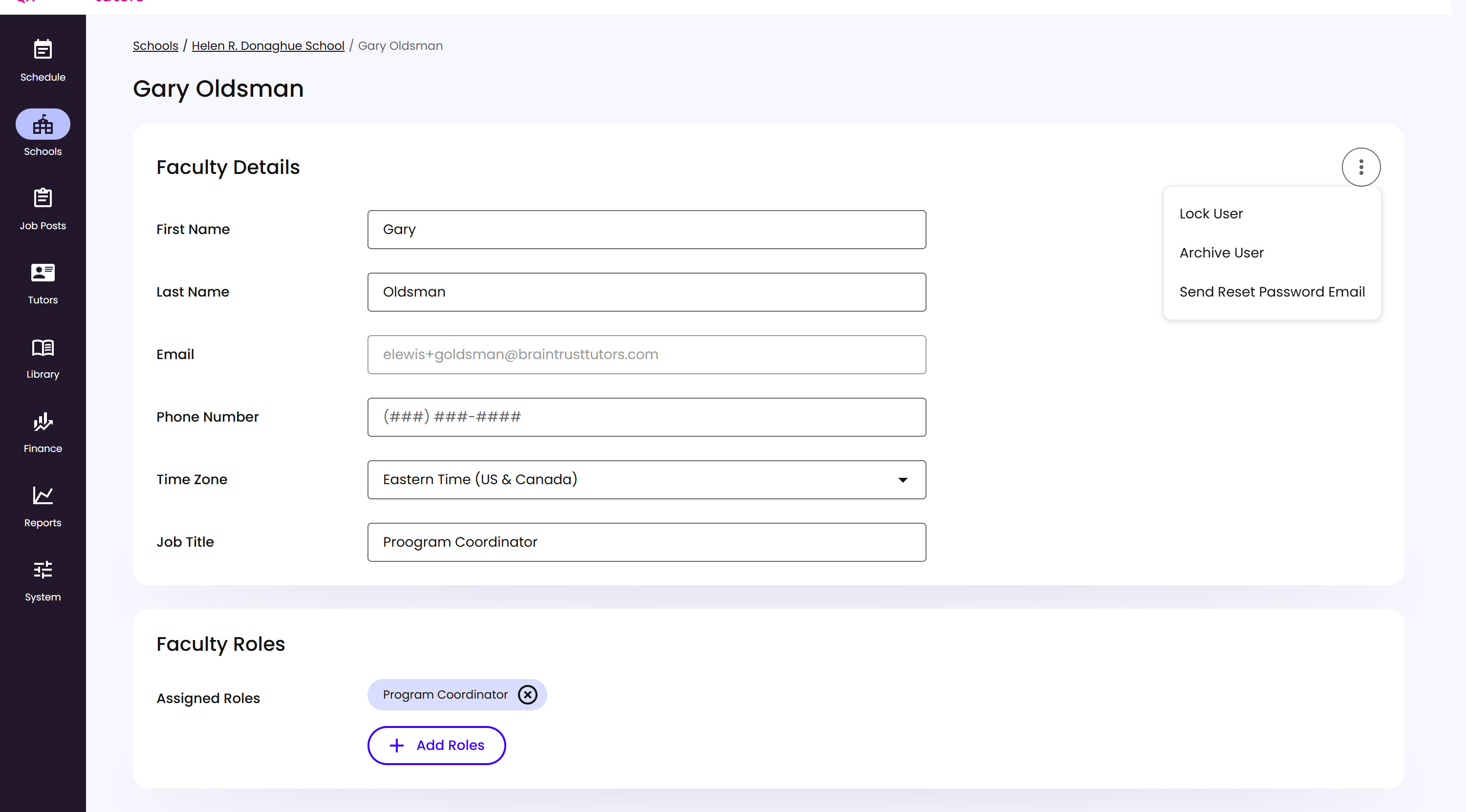
What’s on This Screen
- Faculty Details, the same fields entered at creation, all editable here.
- Faculty Roles, showing this Faculty member’s Assigned Roles as removable chips, plus an Add Roles button.
- Lock User, a temporary measure - the Faculty member can’t sign in until unlocked.
- Archive User, a more permanent version of the same thing, for a Faculty member who likely won’t need access again. Both Lock and Archive can be undone later if needed.
- Send Reset Password Email, sends this Faculty member a password reset email.
Add Roles opens a dropdown of every available role, each with a short description of what it actually grants.
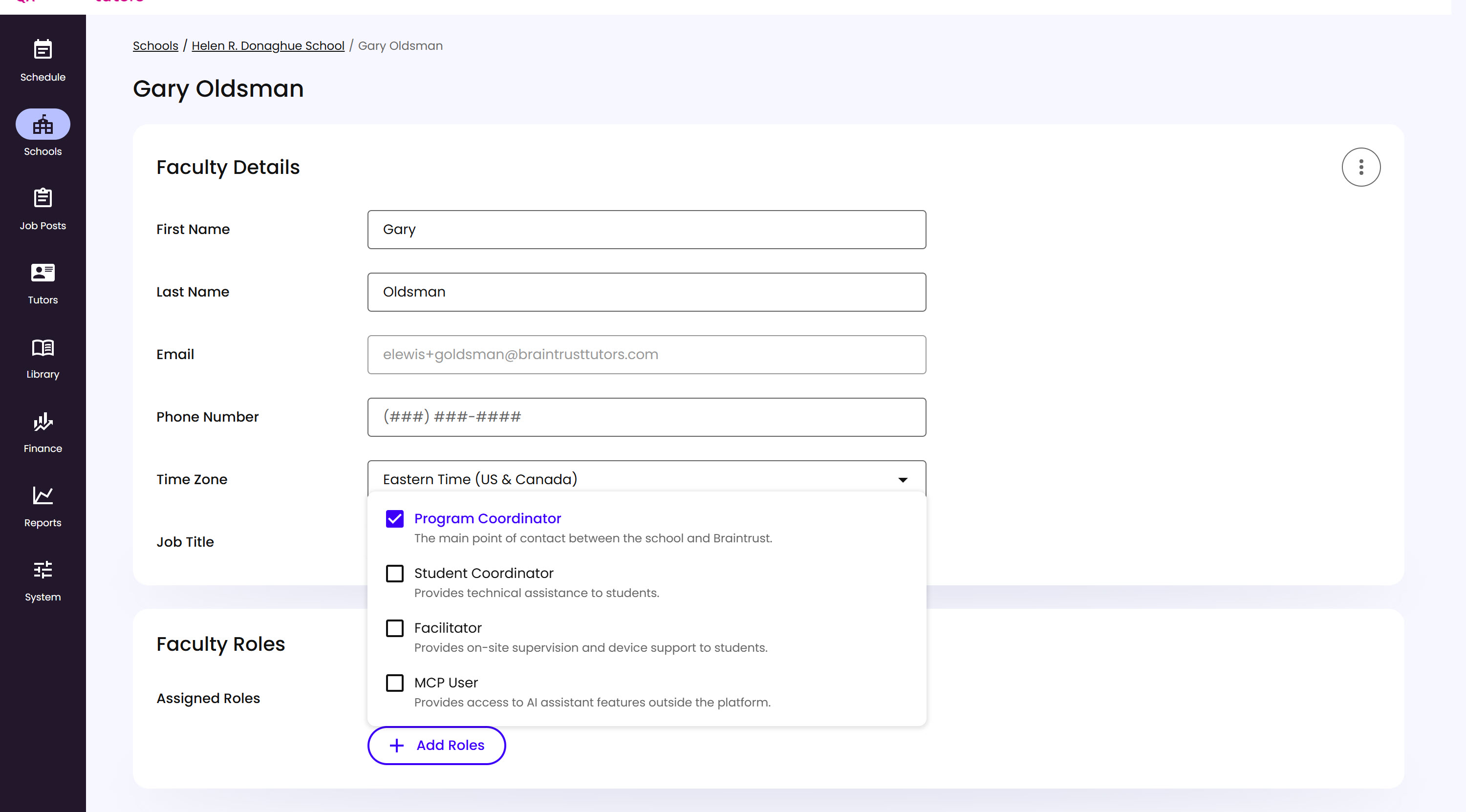
What’s on This Screen
- Program Coordinator, the main point of contact between the school and Braintrust.
- Student Coordinator, provides technical assistance to students.
- Facilitator, provides on-site supervision and device support to students.
- MCP User, provides access to AI assistant features outside the platform. Only shows up as an option once MCP Access is enabled at the District level (see Managing District Details) - that one toggle controls MCP User availability for School Faculty and District Faculty alike.
- Checkboxes, for assigning one or more roles at once.