
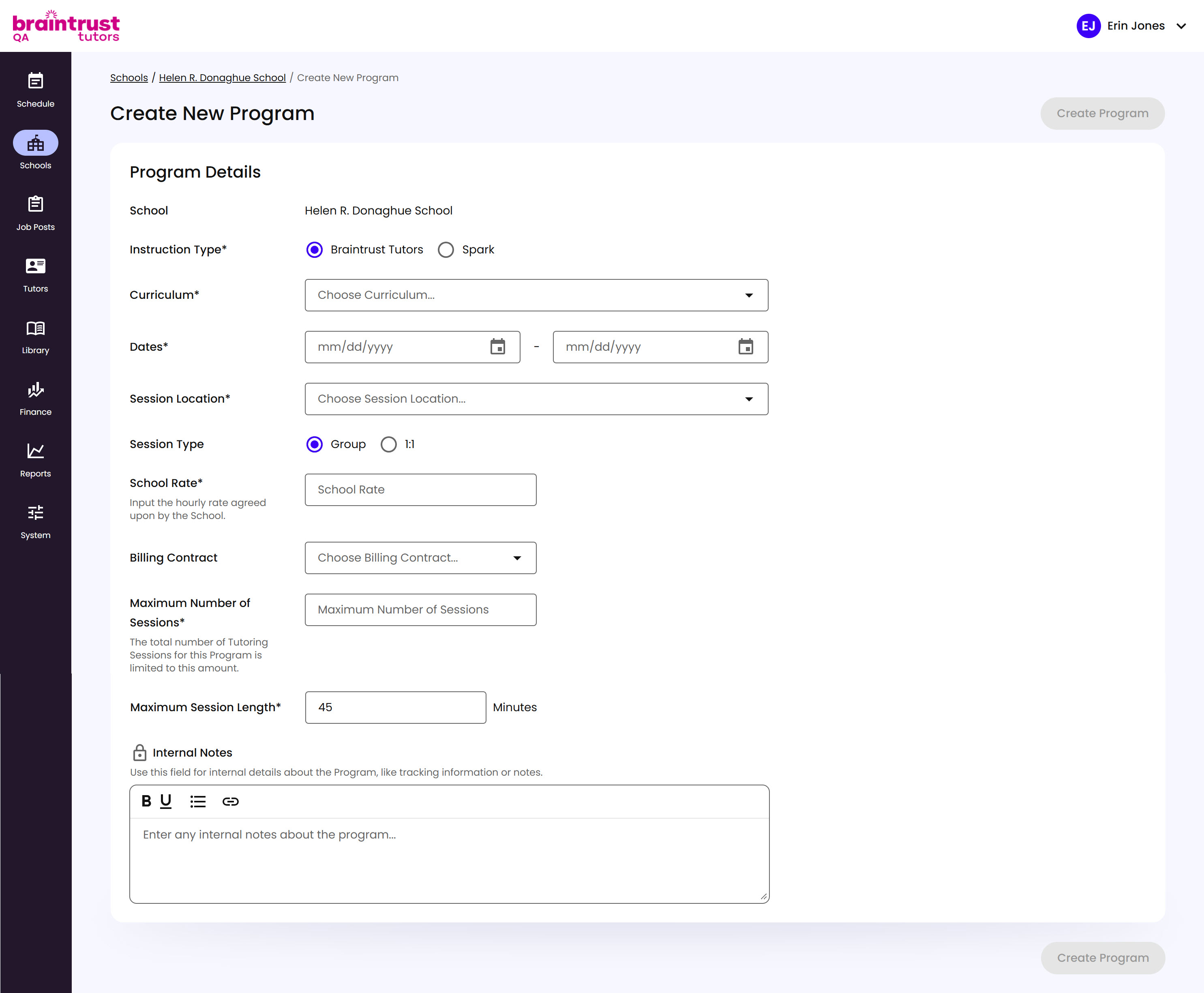
From a School’s Programs tab, click + New Program at the top right. Unlike creating a School, this opens a full page rather than a modal.
What’s on This Screen
- School, shown read-only, confirming which School this Program belongs to.
- Instruction Type, Braintrust Tutors or Spark. Spark runs on its own separate platform experience - covered under Spark Support rather than here.
- Curriculum, Reading or Math. Choosing Math adds a Domains field once the Program’s created, for selecting one or more Math domains, like Number Systems.
- Dates, the Program’s start and end date.
- Session Location, Online or In-Person. This just sets the Program’s default - individual sessions can still be changed to the other option later.
- Session Type, Group or 1:1, defaulting to Group.
- School Rate, the hourly rate agreed upon with the School.
- Billing Contract, an optional dropdown for attaching a billing contract.
- Maximum Number of Sessions, the total number of Tutoring Sessions the Program is limited to.
- Maximum Session Length, in minutes.
- Internal Notes, a private rich-text field for tracking details only your team can see.
- Create Program, at the top right, stays grayed out until every required field is filled in.
What Happens Next
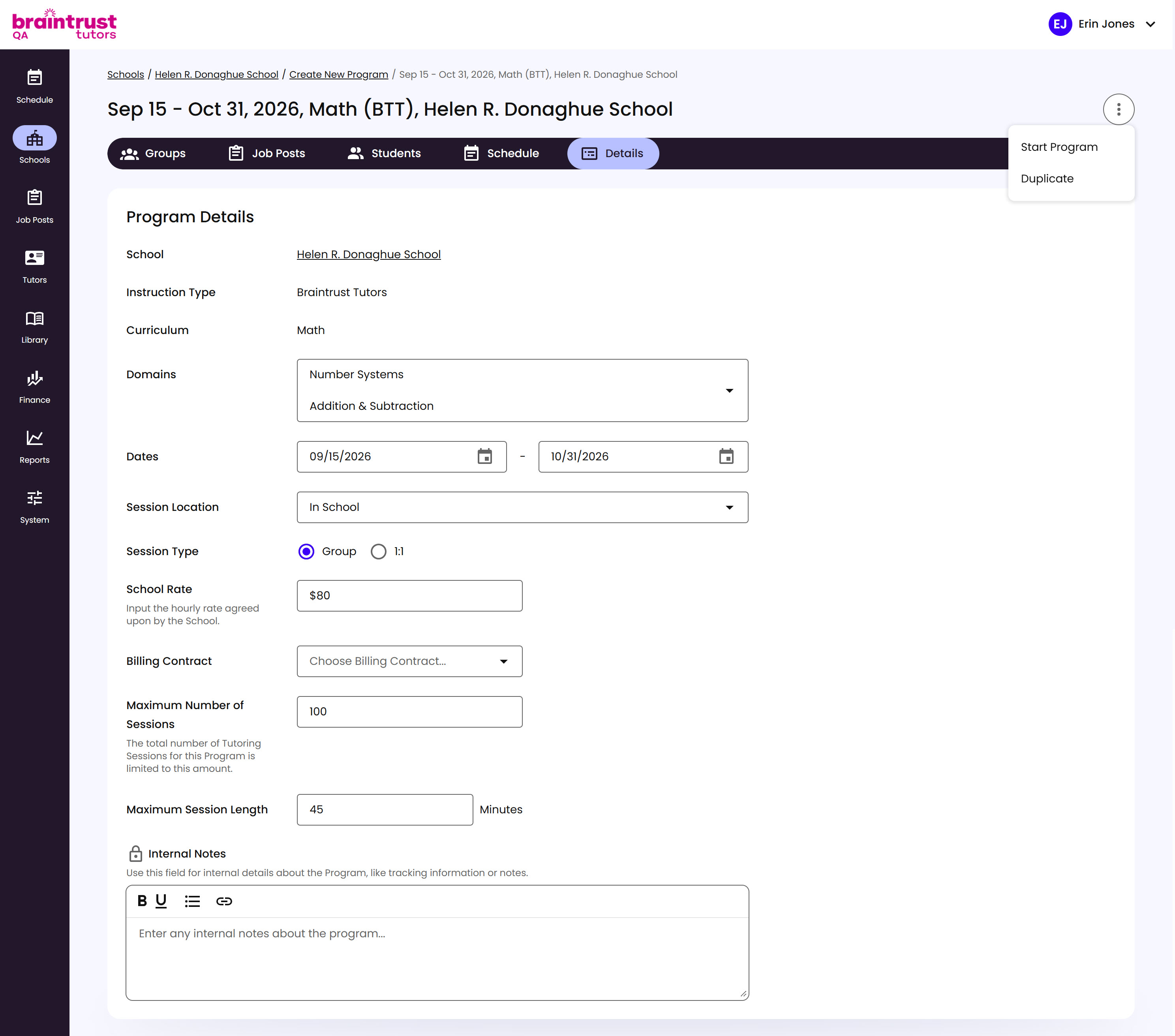
Creating the Program takes you straight to its own Details page, where you can review everything you just set and edit most of it going forward. The options menu next to the Program’s title (the three-dot button) gives you two more actions - while a Program hasn’t started yet, that menu shows Start Program and Duplicate.
What’s on This Screen
- Groups, Job Posts, Students, Schedule, and Details tabs, across the top, for managing everything about this Program.
- School, Instruction Type, and Curriculum, shown read-only here - these three can’t be changed once the Program’s created.
- Domains, Dates, Session Location, Session Type, School Rate, Billing Contract, Maximum Number of Sessions, Maximum Session Length, and Internal Notes, the same fields from creation, still editable.
- Start Program, opens a confirmation modal - see below.
- Duplicate, creates a new Program pre-filled with this one’s details, the same pattern as duplicating a Job Post.
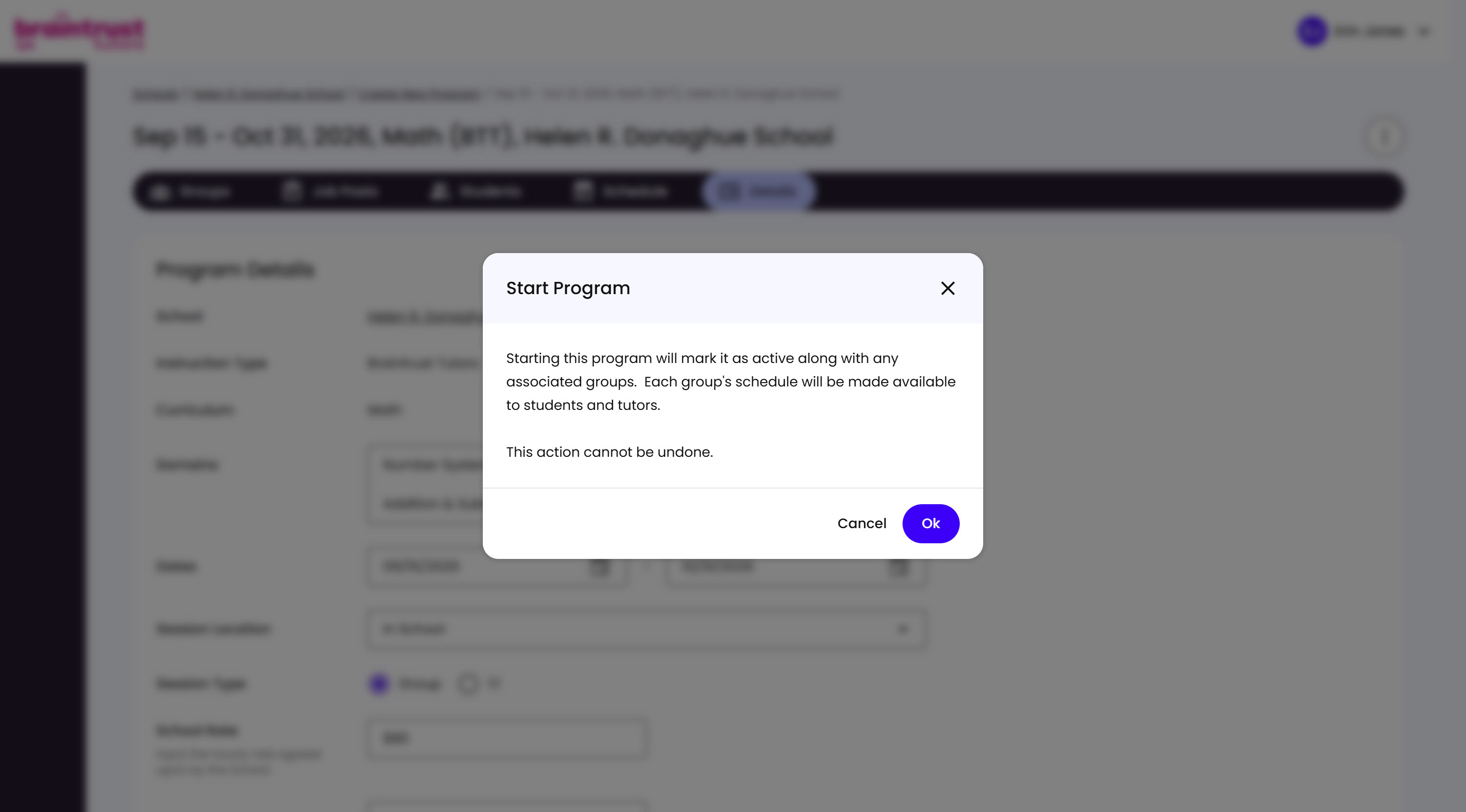
Starting a Program is what actually makes it and its Groups active and visible to Students and Tutors, and it can’t be undone.
What’s on This Screen
- Warning text, explaining that starting the Program marks it and every associated Group active, making each Group’s schedule available to Students and Tutors.
- Cancel and Ok buttons, to back out or confirm.