
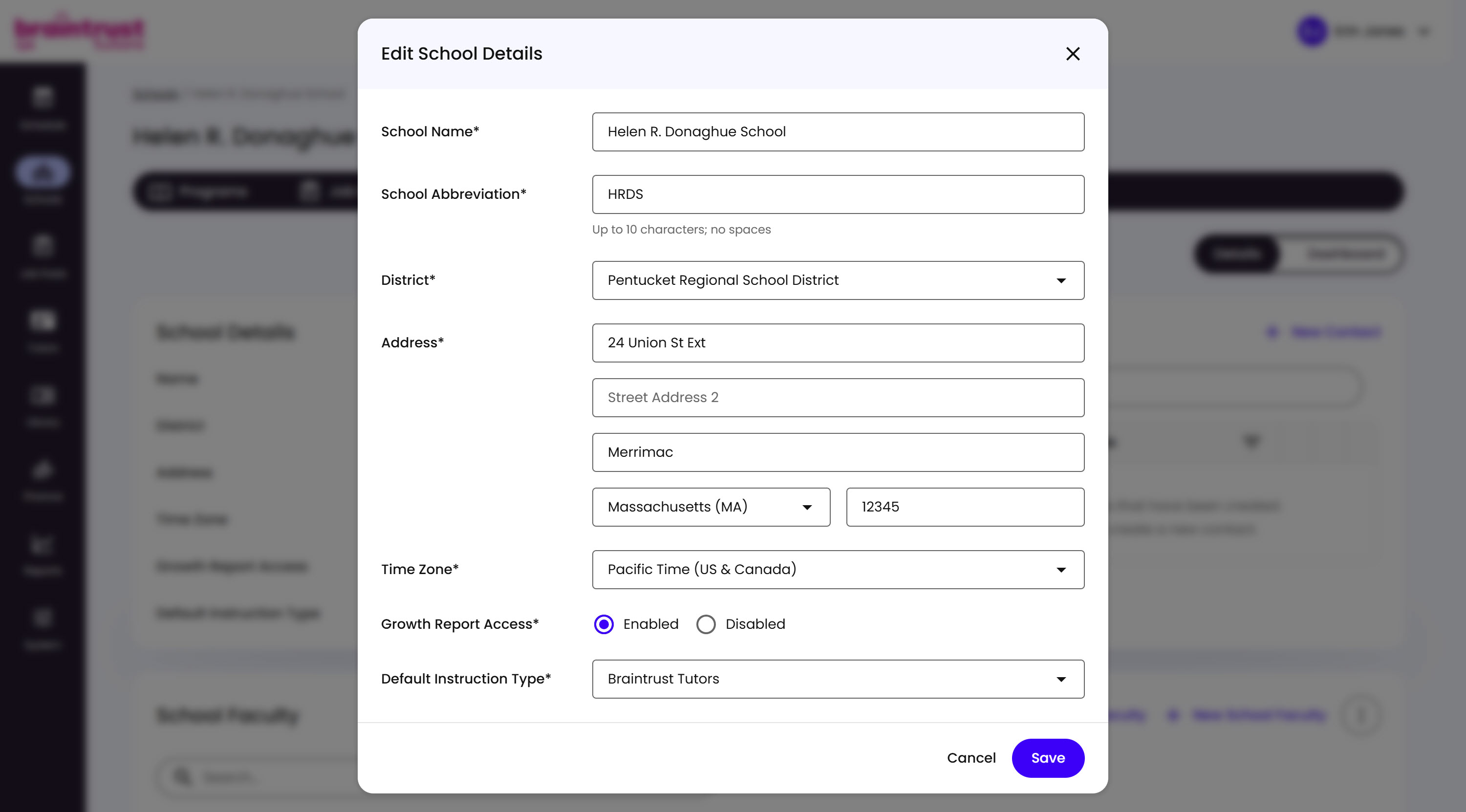
A School’s Details tab is where you manage the School itself after creation, alongside its Contacts and Faculty. Click Edit on the School Details panel to open the Edit School Details modal.
What’s on This Screen
- School Name, School Abbreviation, District, Address, and Time Zone, the same fields set at creation - see Creating the School above.
- Growth Report Access, Enabled or Disabled.
- Default Instruction Type, Braintrust Tutors or Spark.
- Cancel and Save buttons, to back out or confirm.
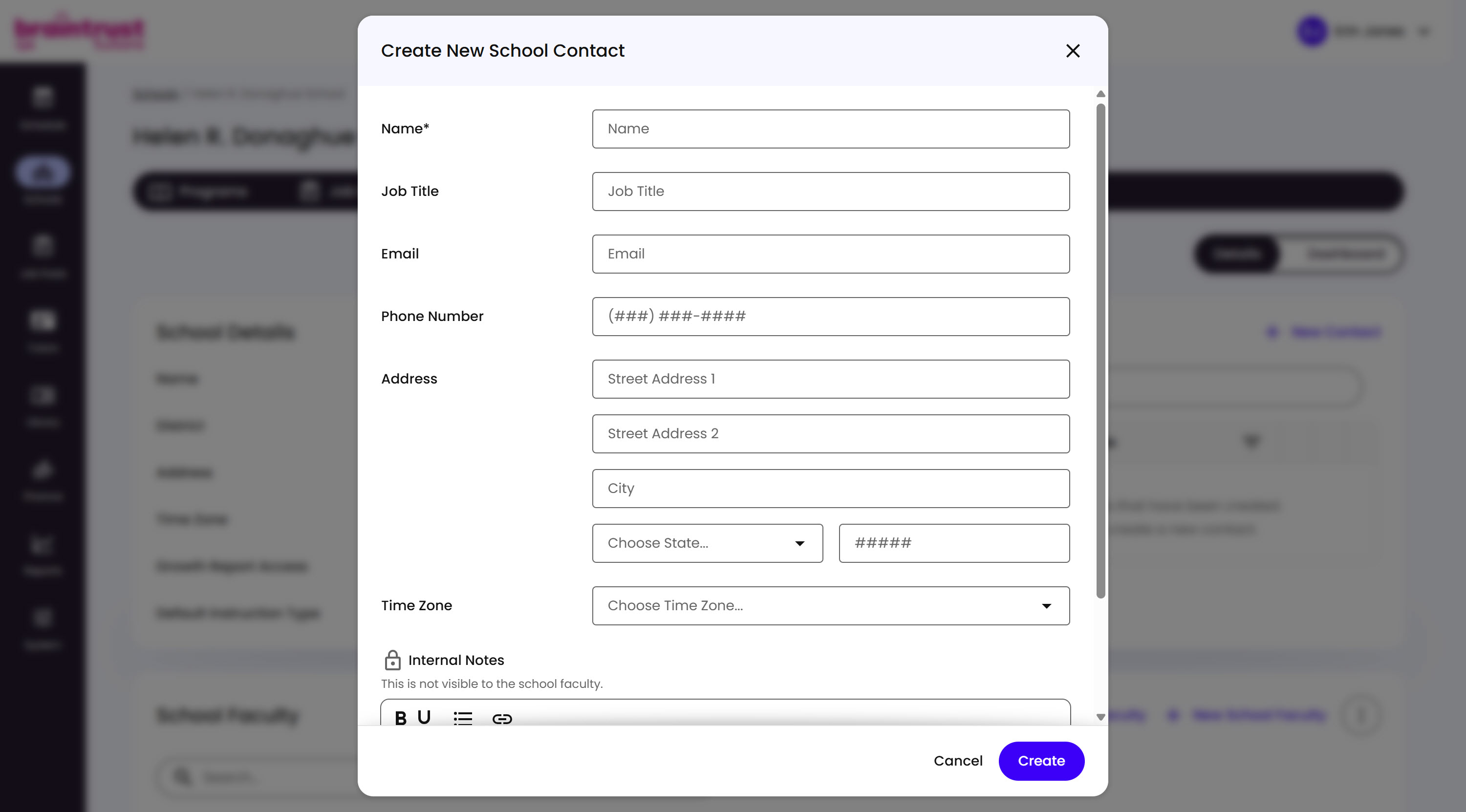
School Contacts work the same way as District Contacts - a Contact is someone from the school who doesn’t have a platform account, but whose information is still worth having on hand as a point of contact. Click New Contact to add one.
What’s on This Screen
- Name, required.
- Job Title, Email, and Phone Number, optional.
- Address and Time Zone, optional.
- Internal Notes, a private rich-text field - the modal notes it “is not visible to the school faculty.”
- Cancel and Create buttons, to back out or confirm.