
Click a District’s name (or its View link) to open the District’s own page. Across the top are tabs for Schools, Programs, Job Posts, Groups, Students, Schedule, Details, Clever, and Finance - all but Details are District-wide rollups of the same information you’d find on one of its individual Schools. Details is where you manage the District itself.
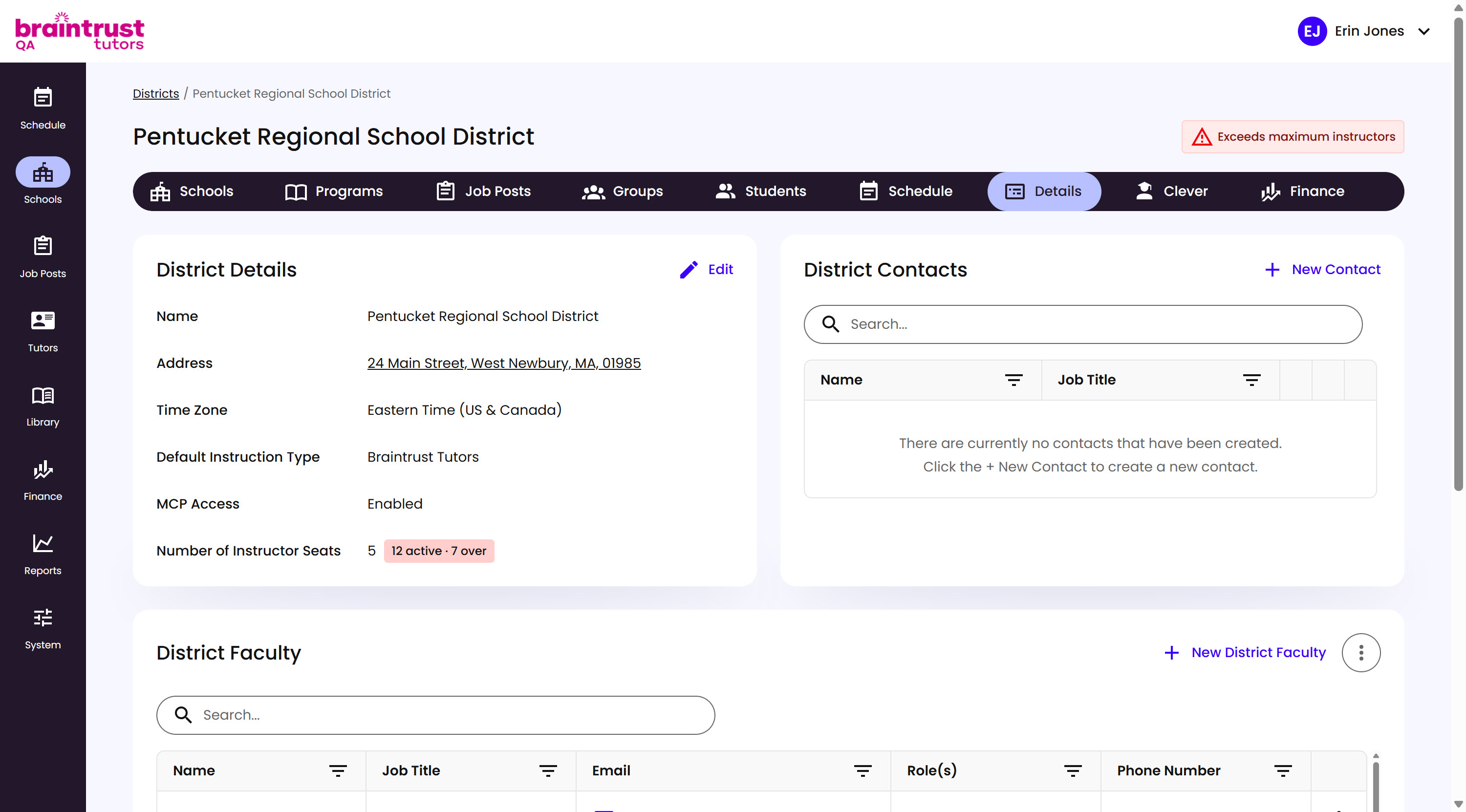
What’s on This Screen
- Schools, Programs, Job Posts, Groups, Students, Schedule, Details, Clever, and Finance tabs, across the top.
- Exceeds maximum instructors warning, appears when the District has more active Instructors than its Number of Instructor Seats allows.
- District Details panel, with an Edit link - see below.
- District Contacts panel, with a search bar, a table of Name and Job Title, and a New Contact button.
- District Faculty panel, with a search bar, a table of Name, Job Title, Email, Role(s), and Phone Number, a New District Faculty button, and an options menu.
Click Edit on District Details to change any of the District’s own settings.
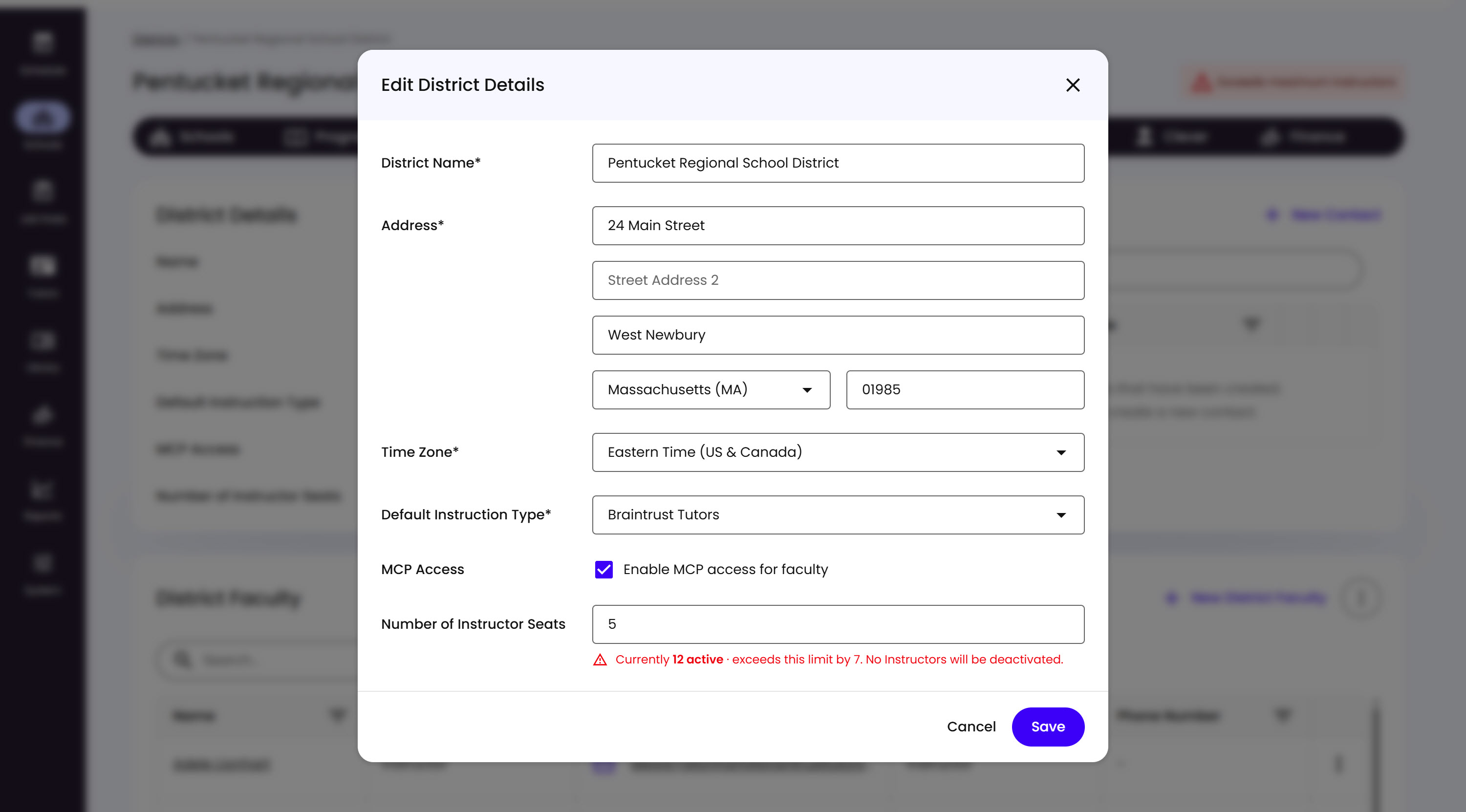
What’s on This Screen
- District Name, Address, and Time Zone, the same fields set at creation.
- Default Instruction Type, Braintrust Tutors or Spark.
- MCP Access, a checkbox enabling AI assistant access for the District’s Faculty.
- Number of Instructor Seats, related to Spark - a soft cap on how many Instructor seats the District is licensed for. Lowering it below the number of currently active Instructors shows a warning, but doesn’t deactivate anyone or block the save.
- Cancel and Save buttons, to back out or confirm.
District Contacts are separate from District Faculty - a Contact is someone from the school who doesn’t have a platform account, but whose information is still worth having on hand as a point of contact. Click New Contact to add one.
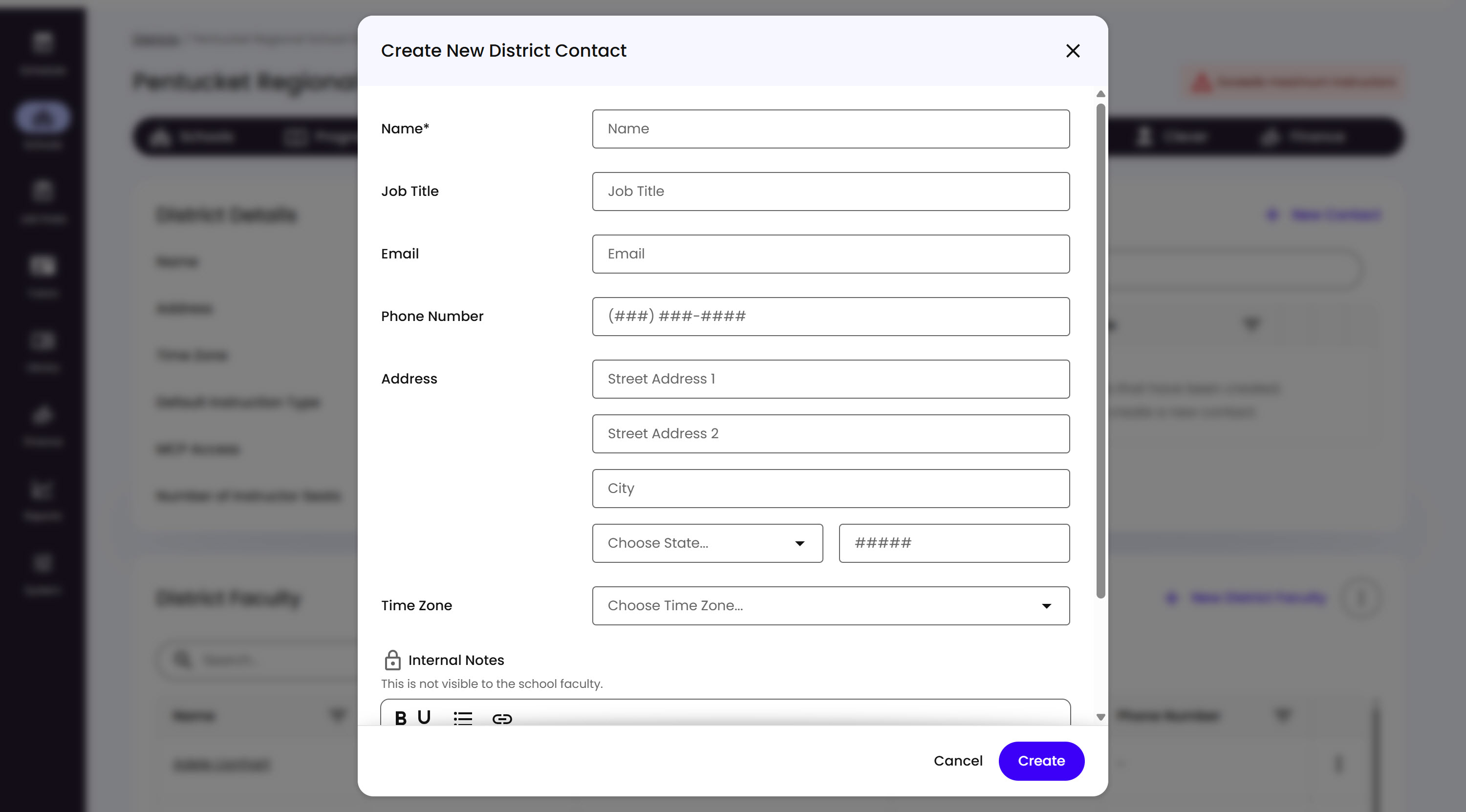
What’s on This Screen
- Name, required.
- Job Title, Email, and Phone Number, optional.
- Address and Time Zone, optional.
- Internal Notes, a private rich-text field - the modal notes it “is not visible to the school faculty.”
- Cancel and Create buttons, to back out or confirm.
District Faculty works the same way as School Faculty for editing an account and the Lock/Archive/Send Reset Password Email actions, but its Faculty Roles are different. A District Faculty account created from here gets assigned to one or more Schools right at creation, same as one created from a School’s own Details tab.
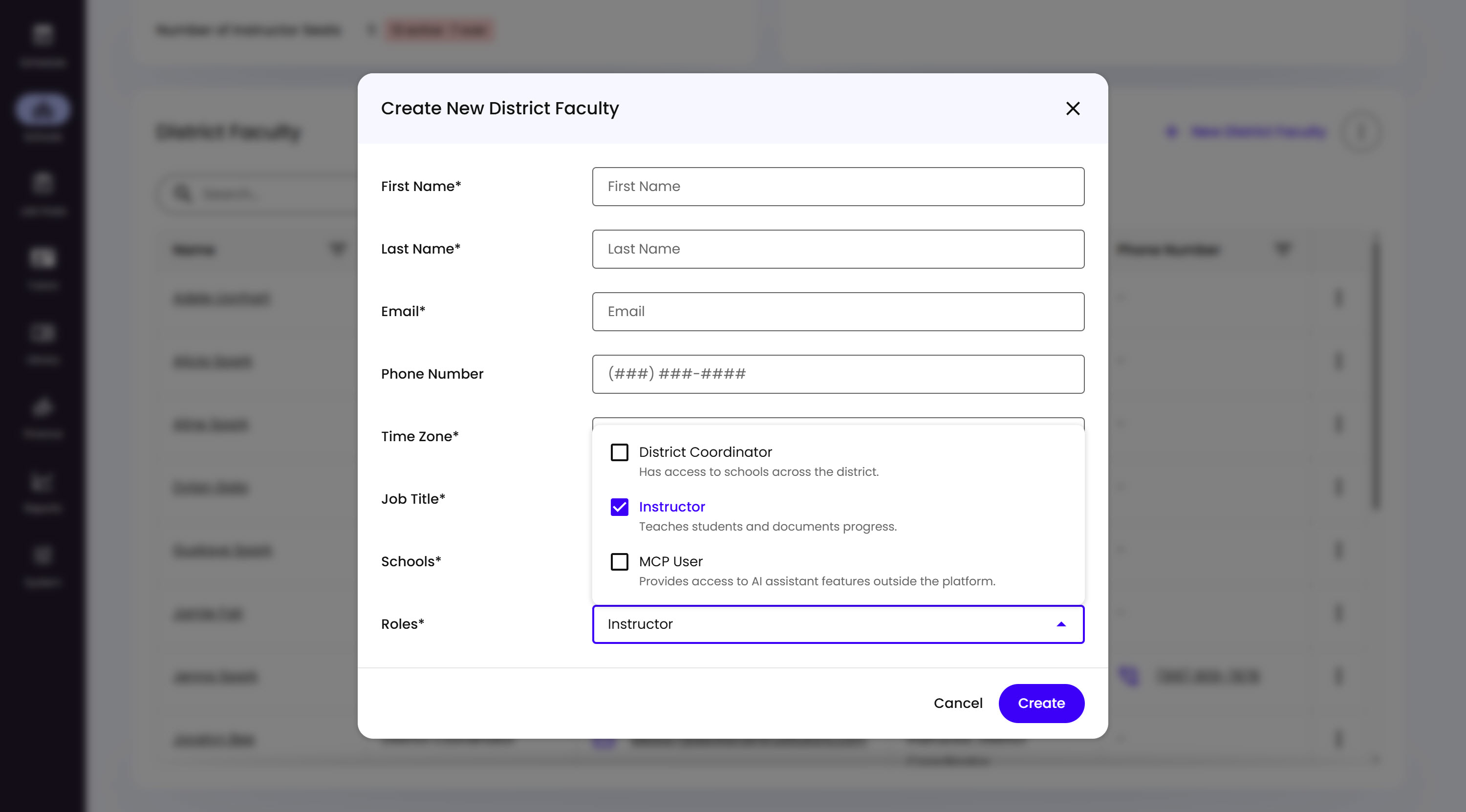
What’s on This Screen
- Schools, required - which School(s) this District Faculty covers.
- District Coordinator, a point of contact from the School District’s side, overseeing every School in the District.
- Instructor, a Spark-specific role, not a Tutor. Instructors work in person at the school providing additional instruction, using Braintrust’s curriculum, and manage their own schedules and meetings - CSMs don’t manage them directly, Spark Support does.
- MCP User, only appears once MCP Access is enabled on the District, same as for School Faculty.