
Once a post is live, the options menu gives you two ways to change who can see it, short of closing it for good.
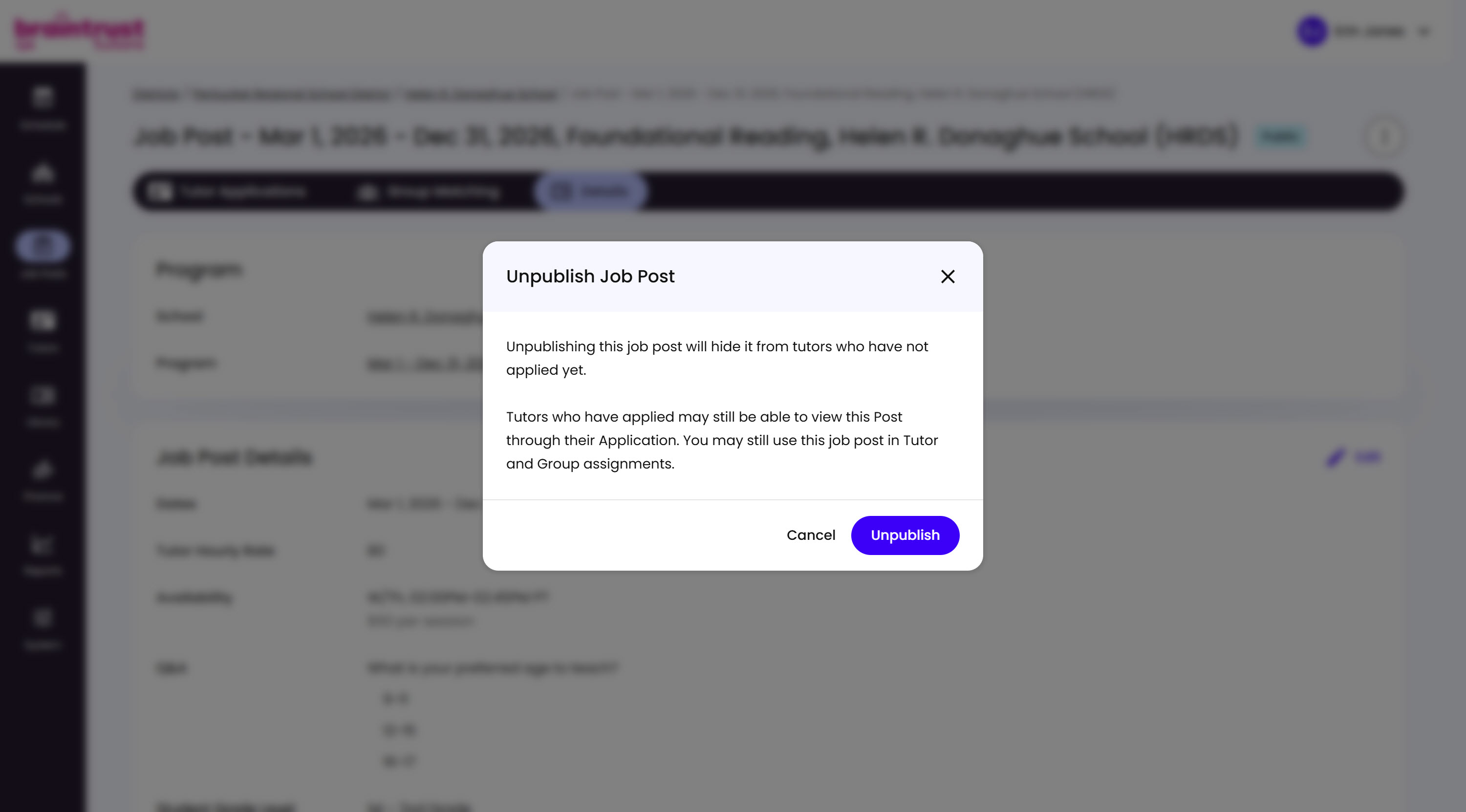
Unpublish takes it out of Opportunities so new Tutors can’t find or apply to it, without touching what’s already there.
What’s on This Screen
- Warning text, explaining that unpublishing hides the post from Tutors who haven’t applied yet. Tutors who already applied can still view it through their application, and you can still use the post in Tutor and Group assignments.
- Cancel and Unpublish buttons, to back out or confirm.
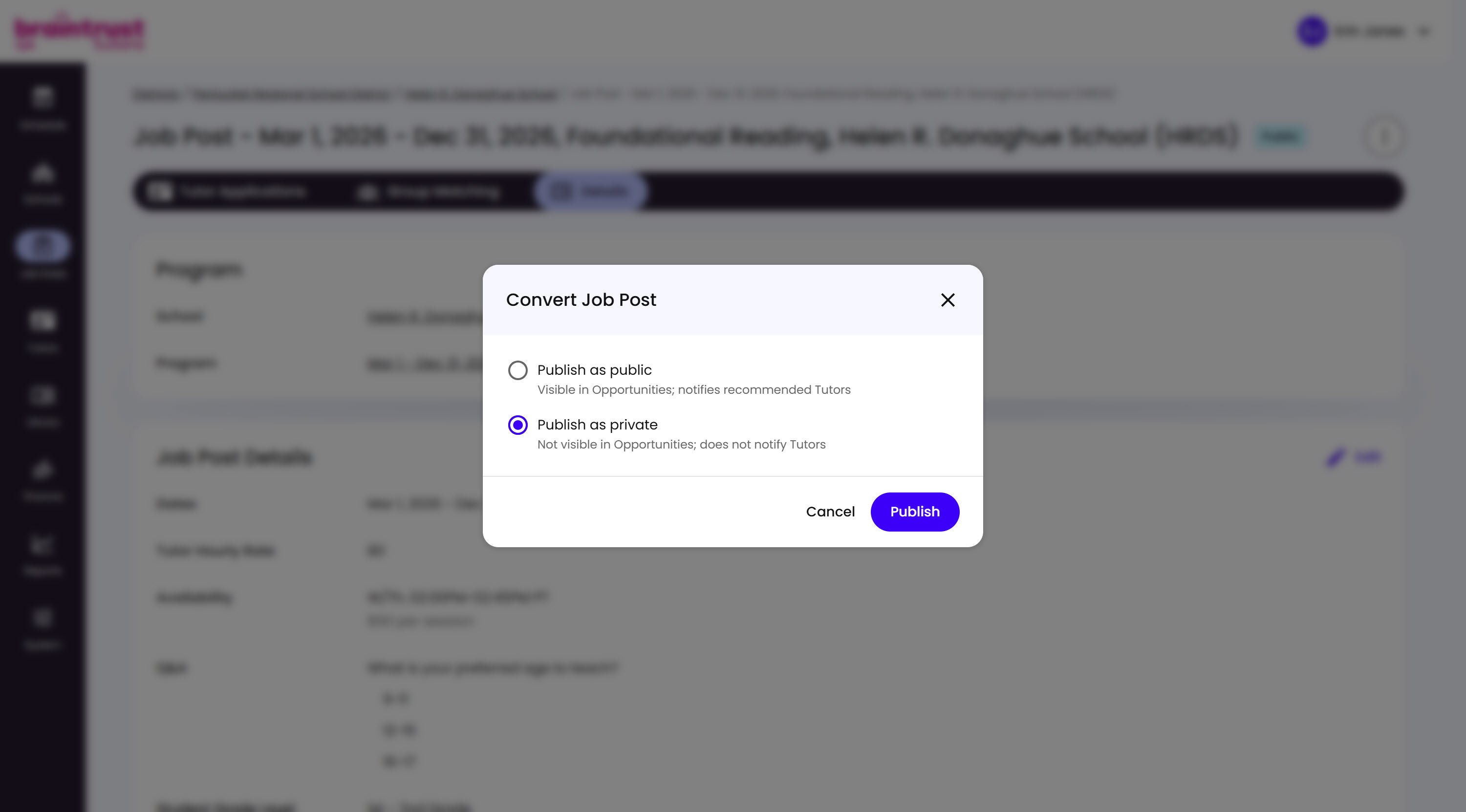
Convert to Private works a little differently: it reopens the same public-or-private choice from when you first published, just with private already selected, so all you have to do is confirm it.
What’s on This Screen
- Publish as public, visible in Opportunities and notifies recommended Tutors, same as when you first published.
- Publish as private, selected here by default: not visible in Opportunities and doesn’t notify Tutors.
- Publish button, confirms whichever option is selected.
Converting to private keeps the post reachable by its direct link, but takes it out of Opportunities and stops any new match notifications - a lighter touch than unpublishing it entirely.
The same modal works in reverse too - selecting Publish as public here converts a private post back to public. That doesn’t trigger the recommended-Tutor notification email either, since that only ever fires on a Job Post’s very first public publish.