
Once you’re ready, click Publish at the top of the post’s page.
What’s on This Screen
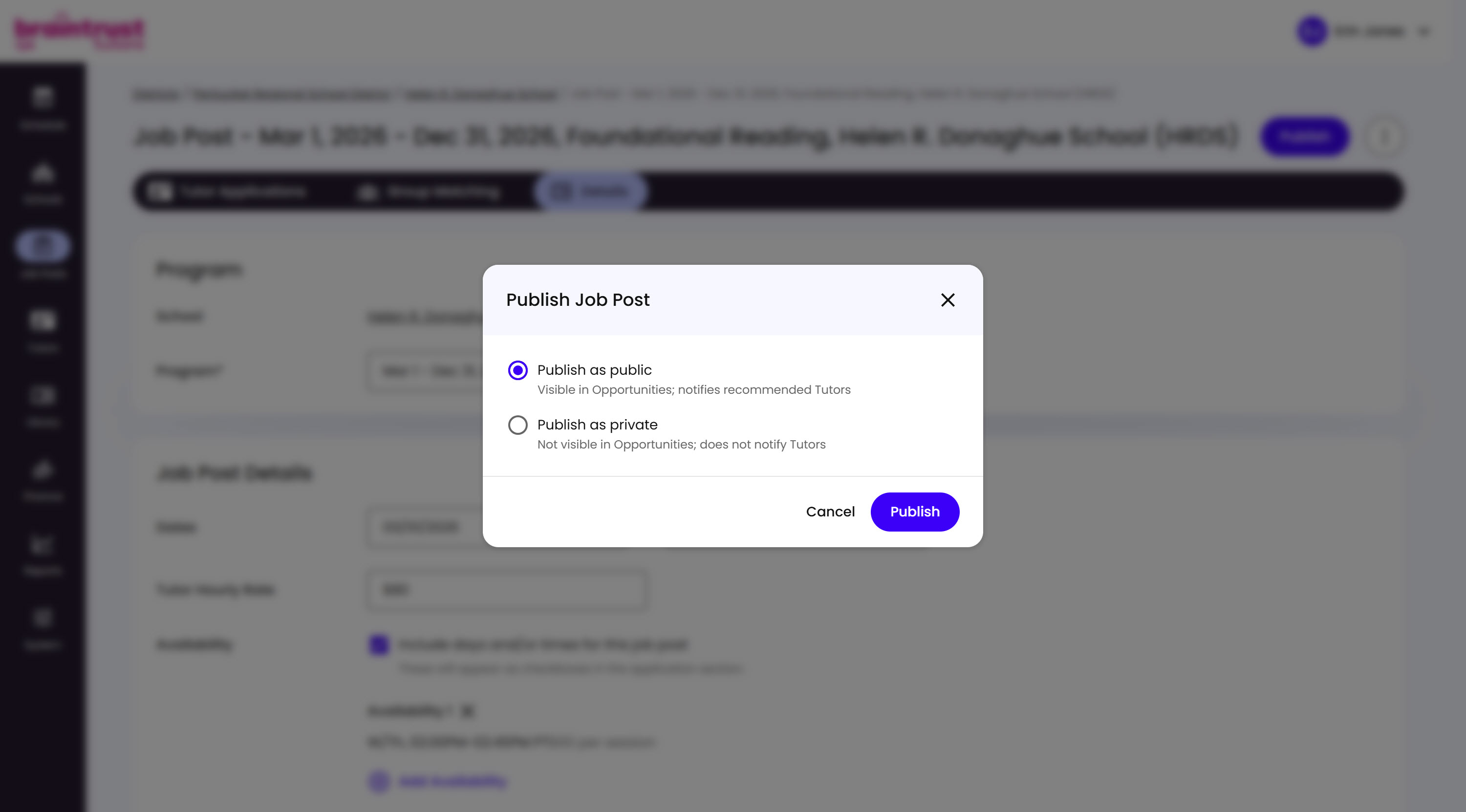
- Publish as public, selected by default. The post is Listed, so it’s visible in Opportunities and notifies recommended Tutors.
- Publish as private. The post is Unlisted, not visible in Opportunities, and doesn’t notify anyone.
- Cancel and Publish buttons, to back out or confirm.
A toast message confirms which one you picked once it’s published.
What to Do Next
If you published privately and need to send the post to a specific Tutor, copy its link from the options menu’s Copy Share Link option and send it directly - this works whether the post is Listed or Unlisted.
What’s on This Screen
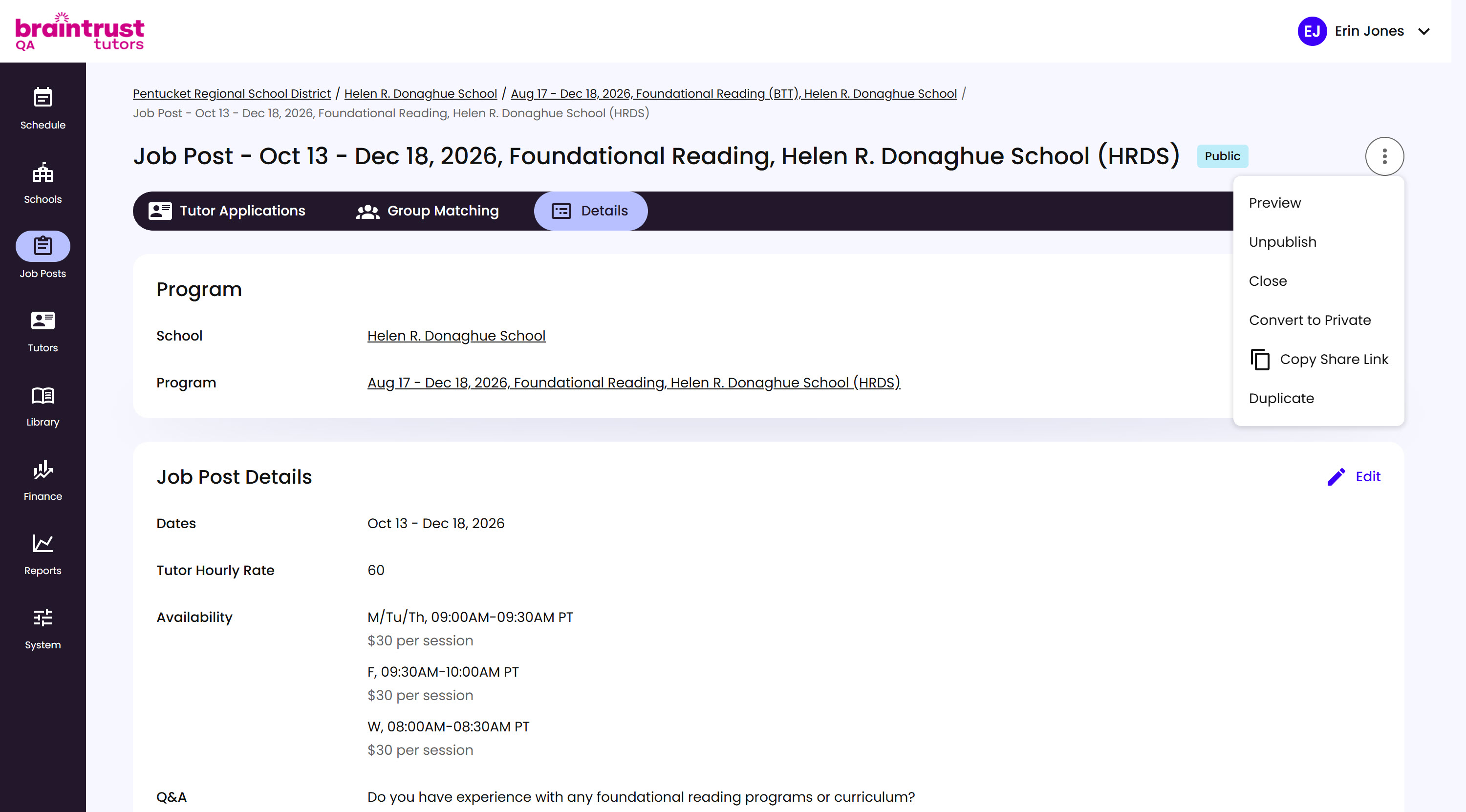
- Options menu, the three-dot button next to Publish - Copy Share Link sits in the same menu regardless of the post’s current visibility.
- Copy Share Link, copies the Job Post’s direct URL to your clipboard, ready to send to a specific Tutor.